Choosing the right font is just the beginning of the battle for a Web designer. For starters, you have to consider how physically demanding reading text on a computer screen actually is. Reading long documents on an electronic display is tiring, and most people tend to scan the text instead.
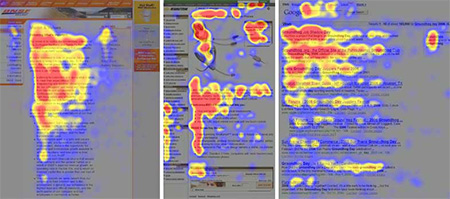 |
| A Nielsen Norman Group eye-tracking study found that online readers tend to scan documents in an F or inverted L shape, rather than reading all the way through. In this heat map of reading habits across three different Web pages, red areas show the most eye attention, followed by yellow, then blue, with gray areas receiving no attention. How we naturally read online affects how we should typeset text online. |
In many cases, this is fine, and page content can be formatted to induce scanning, setting important keywords in bold and highlighting text excerpts and pull quotes.
If you want the reader to settle in and really concentrate on the text at hand, however, you have to shape the content into a clean, legible format to make it as conducive as possible to longform reading. That's where typesetting comes in.
Typesetting is the artful combination of font size, line length, and line height, along with careful consideration of spacing and vertical rhythm. If you understand your content and how it should be read, you can use these tools to guide the reader through the text.
Font-Size
After deciding on a font, the typographer's task is to determine a font-size.
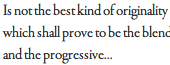
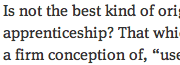
The standard paragraph setting is 16px, or 1em. However, the ideal font-size depends on the font. As we saw in Lecture One, fonts with small x-heights appear smaller than fonts with large x-heights.
 |
 |
| Garamond Premier Pro, 16px |
FF Meta Serif, 16px |
If your font has a large x-height, it will probably read well at 16px, or even at 14px or 12px. If your font has a small x-height, you might need to bump up the font-size to 18px.
Another determining factor is the amount of text. A short text blurb can be read in a small font-size without straining the eye. However, if the article is long and the font-size is small, reading becomes tiring after a few paragraphs.
Article summaries on the New York Times are set in 12px Georgia.
The full articles are set in a larger 15px font-size.
Remember, it is harder to read on screen than on paper. Text on a screen is composed of tiny pixels. The outlines of the letterforms are not clearly drawn.
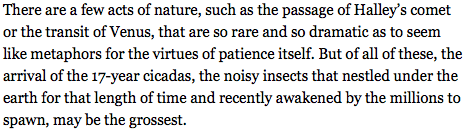
The current trend online is towards larger font settings. British Vogue uses a 22px font setting in Minion Pro. Very easy on the eye.
Font Size Units
 When it comes to sizing type, you'll need to choose a unit: pixels, ems or rems.
Pixels are similar to the point sizes used in print design. You've probably used pixels before, so you have a good idea of how large 40px type is, and how small 10px type is. Pixels give designers exact control of how large type will appear on the screen.
The em is relative to the browser's base font-size. By default, the base font-size is 16px, so text set at 1em will display at 16 pixels. Text set at 0.75em text will display at 12 pixels; text set at 2em will display at 32 pixels.
However, users may override the base font-size in their browser preferences. If the user resets the base font-size to 24px, text set at 1em will display at 24 pixels. This is a great accessibility feature, allowing the user to choose a comfortable font-size depending on his or her needs.
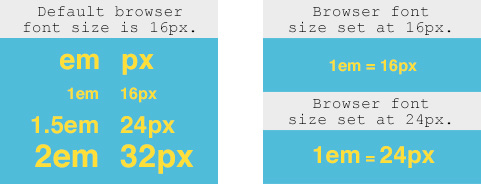
Calculating em sizes becomes complicated when working with nested content areas. If you set an article to 1.5em, and a heading inside the article to 2em, the font-size of the heading will be relative to the font-size of the article. So, assuming a base font-size of 16 pixels, the text in the article will display at 24 pixels (16 x 1.5), and the headings will display at 48 pixels (24 x 2).
If these calculations tie you into knots, you'll be grateful for the rem unit. Just like the em, the rem is relative to the browser's base font-size. However, it doesn't compound like the em in nested content areas. The rem is always relative to the root element, the body font-size itself. If you set an article to 1.5rem, it will display at 24 pixels (16 x 1.5). If you set a heading inside the article to 2rem, it will display at 32 pixels (16 x 2). Each time, the browser uses the root element to calculate the font-size. The context doesn't matter.
Easy calculation and good accessiblity makes the rem unit a clear winner in my opinion. Rem units work in every browser except IE8. If you have to support IE8, you'll need to use ems rather than rems. If you can drop support for IE8 (Microsoft itself no longer supports IE8 so you'll be in good company), I'd recommend rems over ems anyday.
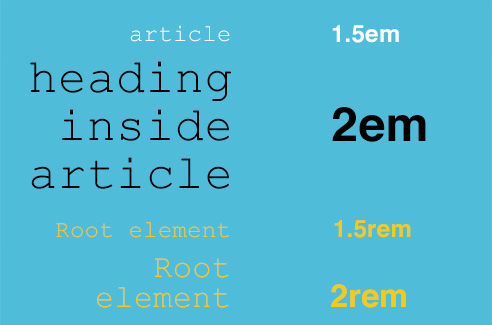
Here's a recap of all three font-size units:
 |
|
 |
| |
- Pixels: Pixels give designers exact control of what size type will appear on the screen.
- Ems: The em is relative to the browser's base font-size. Inside nested content, ems are relative to parent elements.
- Rems: Like the em, the rem is relative to the browser's base font-size, but unlike ems, the rem does not change in nested content. It is always relative to the root element, the body font-size itself.
|
|
 |
|
 |
Measure
Reading is work. The eye arrives at the end of each line of text, pauses, then doubles back to find the beginning of the next line. In typography, we use the term measure to mean the length of a line in characters, and this is how we, well, measure the amount of eye work each line takes.
If the measure is too short, the repeated pauses break up the flow of the text. If the measure is too long, the reader has trouble finding the next line after doubling back. The optimal measure for longform reading is between between 50 to 85 characters per line. To determine measure, we count all characters, punctuation, and spaces.
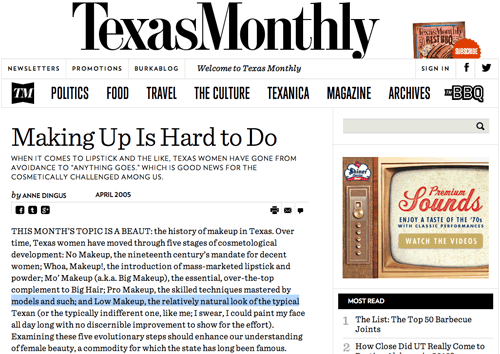
Let's see how the Texas Monthly, an online magazine, measures up. I'll select a typical line of text (not the longest, nor the shortest) ...
.. and copy/paste into a character counter (you can find a free one online at http://www.charactercountonline.com/). The result is perfectly in range: 76 characters. This means that the designers at Texas Monthly have done a good job making their text comfortable to read.
How can we set line length in a Web document? Well, line length can be set in pixels or ems. The methods produce different results when it comes to the font size set by the user's browser zoom level. Compare the examples below and click the links to see them in action.
|
|
|
| |
- Example A: No measure is applied to the article. The text fills the entire browser window.
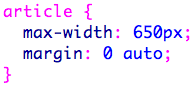
- Example B: The article has a maximum width of 650px. Go to View > Zoom in your browser menu. Notice how the text wraps as the font size increases.
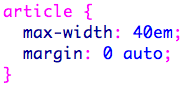
- Example C: The article has a maximum width of 40em. Go to View > Zoom again. This time, the entire width of the article increases as you zoom.
The text doesn't wrap.
|
|
|
|
|
If you want to control the exact number of characters per line, then setting the measure in ems is the solution. This technique works well for simple, one column layouts with long sections of text.
If you don't want the width of the text area to change when the text is resized—if, for example, you have a multi-column layout with small chunks of text—then you should define the width of the layout in pixels.
Line-Height
Line length is only half the dimensional battle. There's also how tall a line of text might be. Line height and line length work hand-in-hand to ensure a pleasurable reading experience.
When line height is too tight, the lines blend together, making the text hard to read, as you can see in the example below.
 |
| font-size:14px; line-height: 14px; |
When line height is increased, the text feels open and legible.
 |
| font-size:14px; line-height: 24px; |
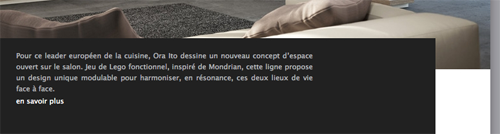
In fact, you can maintain legibility at small font-sizes by adding extra line-height. Online cooking Web site Saveur uses tiny 11px text for article intros, but adds 18px of line height to compensate. The second paragraph in the image below, set in 14px text, creates a visually contrasting color and texture.
Each paragraph has a different "typographic color" that implies the purpose of the copy. In other words, if you squint so the text blurs together, you'll notice that the top paragraph averages to a pale gray, and the bottom paragraph is a darker gray.
Above the body text, of course, comes the title. Page titles, because they are usually a larger font size than the copy below them, require only a small amount of line height. Consider the two line title below, which is perfectly readable with a relatively tight line height.
If too much line height is applied to page titles, the words float apart and the title doesn't read as a cohesive message.
Line-height can be written using pixel values:
 |
| If the line-height is 24px and the font-size is 16px, that allows 8px of leading between the lines of text. |
Or em values:
 |
| A line-height of 1.5em is one and a half times as tall as the base font size. |
Or unitless values:
 |
| Using unitless values, simply multiply the font-size by the line-height value. |
Unitless values are generally recommended as the more flexible option. If the font size varies from 16px to 24px, the line height will be scaled proportionally. In contrast, a line height of 24px will always be 24px, no matter the font size. Unitless values are the best bet for a responsive and flexible line height.
Vertical Rhythm
Of course, reading on the Web doesn't just stop with a single paragraph. The experience of scrolling down a Web page is like listening to a piece of music: an arrangement of beats and pauses. The space between text elements determines the vertical rhythm.
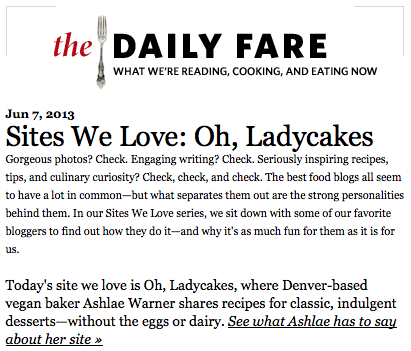
Designer Alexander Ross Charchar uses space to dramatic effect on his blog (http://retinart.net), which you can see below. The large Reflections title has a font size of 3em (three times the standard font size) with a line height of 1.17em. Wide margins are applied above and below.
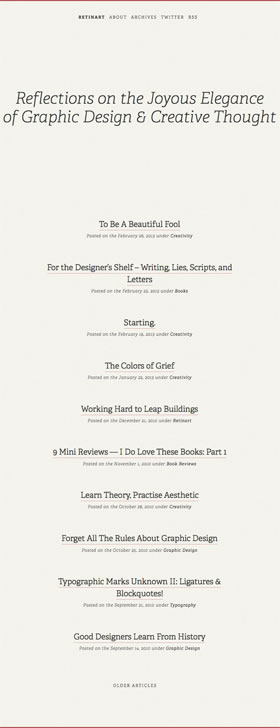 |
| Even scrolling through just a screenshot of Alexander Ross Charchar's blog, you can feel the tranquil vertical rhythm provided by the generous spacing. |
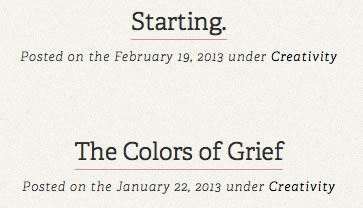
The article titles and descriptions are grouped together, with a generous bottom margin separating one entry from the next, as you can see below.
Meanwhile, on the article pages themselves, the page title is separated from the body text by a large margin. The paragraph text is slightly larger than the standard font-size, 1.055em, with a line-height of 1.75em. Watch the video below for a live version of this vertical rhythm experience.
The general rule is to set the spacing between paragraphs to match the line height. If Alexander had followed this rule and set the paragraph bottom-margin to 1.75em, it would have looked like this:
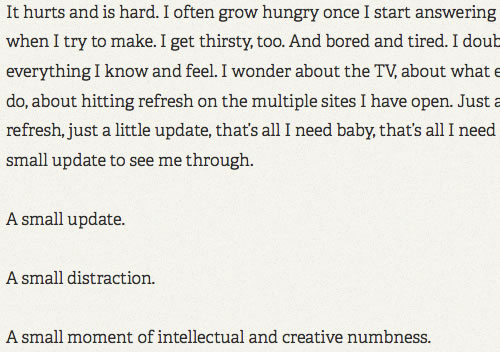
Instead, Alexander opted for a narrower margin of 0.875em. These adjustments are very subtle and must be done in accordance with each design.
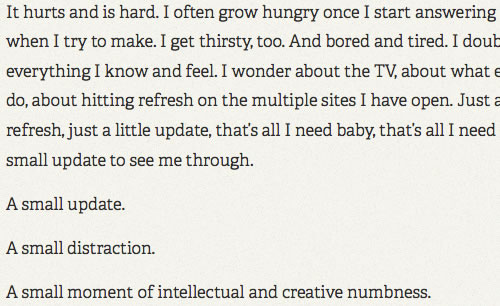
Overall, Alexander achieved a perfect reading experience: he choose a legible font, determined the ideal font size, controlled the measure to average 70 characters per line, added sufficient line-height, and fine-tuned the vertical spacing between page elements.
Complex Vertical Rhythms
What happens when we move beyond the constraints of a relatively simple blog? The Web site for AIGA Los Angeles, a design conference, boasts a more complex layout with text, images, and multiple columns, but it pays the same careful attention as Alexander's blog to vertical rhythm. Watch the video below to see the home page's vertical rhythm in action.
Let's examine how this Web site works on a technical level. The thin gray borders divide the divs into sub-sections. The text is vertically centered within each sub-section: 8px above and 8px below, as you can see in the following screenshot:

The same gray borders divide the articles, but here, the margins are doubled to 16px.
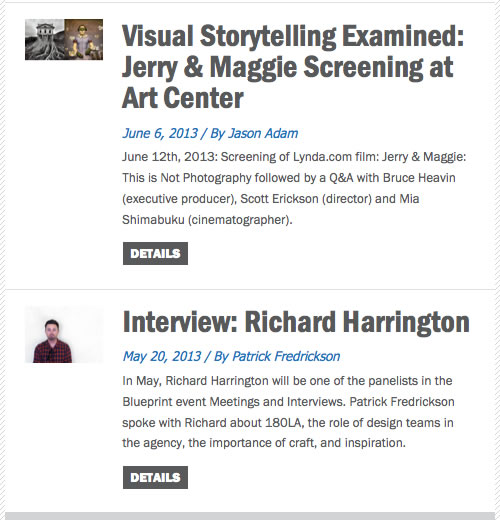 |
| Generous margins give plenty of space for each article to stand out and invite further exploration. |
The article titles are 2.4em with a line height of 1em and 10px of bottom padding. Note that em and pixel values are mixed here, as you can see in the code below.
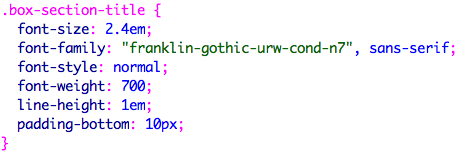
Setting the font size and line height in ems allows the text to adjust according to the user's preference. Setting the bottom padding to 10px maintains a precise 10px space between the page title and the date/byline.
In the AIGA site, each article varies in height, depending on the amount of content. Consistent top and bottom margins maintain order.
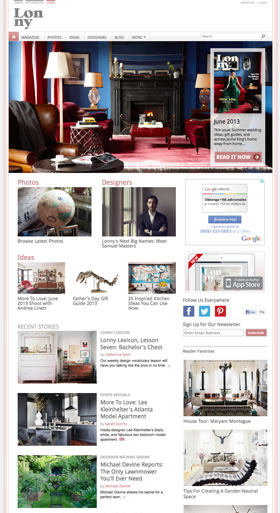
Online home decor magazine Lonny takes a different approach. The images set the vertical rhythm.
Each image is 240 pixels tall. The article summaries are carefully edited not to over-extend the height of the image. The article title, byline, and description are closely spaced. Variation in casing, size, and color defines the role of each text element.
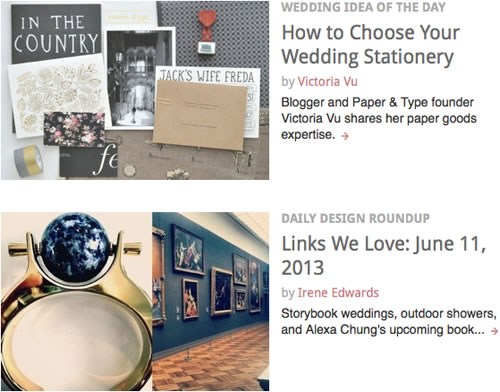 |
| Notice how slight variations in color, case, and size help designate the different roles of the text on http://www.lonny.com/. |
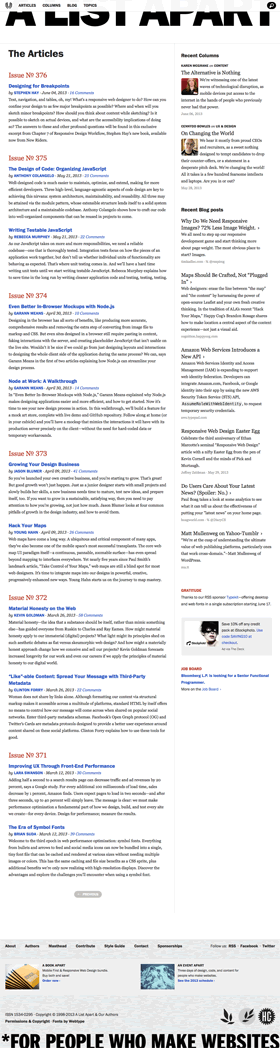
In this article listing from A List Apart, an online Web design periodical, each issue has a significant top margin. Vertical rhythm organizes the page into chunks of related content.
The spacing is beautifully executed in the articles as well. The byline and publication date are aligned with the page title. The red section title is placed closer to the paragraph below than the paragraph above, indicating a corresponding relationship.
 |
| The placement of the text elements in this article from http://alistapart.com/do a good job indicating how the different areas of text are related to each other. |



 Explore the qualities of type and how they affect readability on the screen.