Photo Setup | Using Strobes, Shooting Tethered, and Advanced Lighting


Using Strobes, Shooting Tethered, and Advanced Lighting

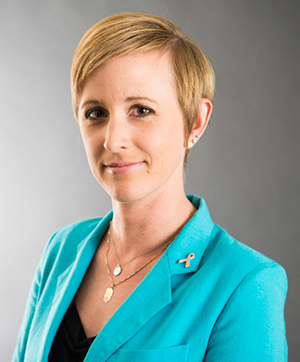
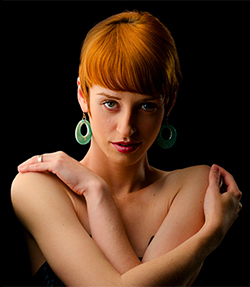
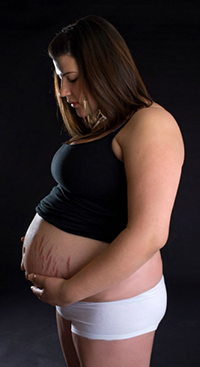
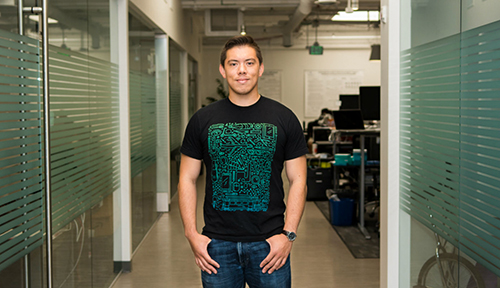
Four different lighting elements were used for this portrait. Read on to find out more.

So far, we've learned how to plan and coordinate a photo shoot using lighting modifiers, and explored how to use one and two light setups.

In this lesson, you'll continue to use those elements while you investigate how to use strobe lighting and shoot tethered.

By the end of the lesson, we'll be ready to look at some more complicated lighting setups: including loop lighting, backlighting, side lighting, and Rembrandt lighting. You'll have the tools to tackle sophisticated lighting schemes for portrait shoots.

In this lecture, you can expect to:

Learn the different kinds of strobe light you can expect to encounter.
Learn a basic workflow for using strobe lights.
Learn how to shoot tethered, including how to do so in Lightroom.
Learn how to tackle four complicated lighting setups.


Most strobes are daylight balanced, meaning their color temperature should match that of daylight at midday.


Name brand strobes include Profoto, Elinchrome, and AlienBees.


Types of Light: Strobe


Strobe lights fire in sync with your camera, popping off a huge burst of light while your shutter is open and remaining dark the rest of the time. These lights allow a greater output of illumination without heating up drastically or drawing large amounts of electricity for the duration of a photoshoot.

Most strobes have a built in modeling light. A modeling light is a lower wattage continuous bulb that allows you to visualize the angle and effect of your strobe before you fire it. Let's look at some of the different types of strobe you may encounter.

Studio Strobes
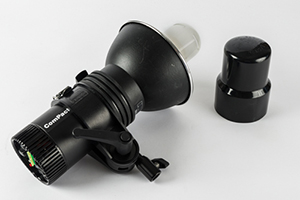
This is a monolight Profoto strobe (a Compact 600R) containing everything within the head. With a power cord and a stand, this unit is ready to shoot. (Notice the plastic bulb protector on the right? Always take this off before firing your strobe!) Photo by Felicia Kieselhorst.

When we refer to studio strobes we may mean monolight strobes or strobes with external powerpacks. A monolight is a strobe with everything built into its housing or "head", including the bulbs and the power. Strobes with powerpacks have separate heads and batteries.

You'll usually find a monolight setup in a studio (although you can shoot outdoors using a portable generator).
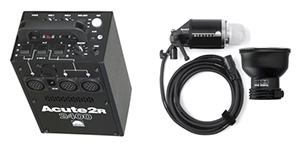
 

This Profoto kit has the bulb/head on the left and the powerpack/battery on the right. It does not need to be plugged into power to operate as long as your battery is charged up.

Powerpack strobes are incredibly useful outside because you can run them off battery power rather than plugging them in or using a generator.

The disadvantages of powerpack strobes are their high price tag and also the heaviness of the powerpack (think about carrying around a car battery!). If you plan to shoot frequently outside or on location without power, they might be worth the investment. Monolight kits usually offer everything a studio photographer will need.

Shooting With Studio Strobes

Before you can actually fire a shot with your strobes, you'll have some set up to do. First, get your lights on stands and into the approximate position you'll want them in. If you are shooting with a powerpack, plug each strobe head into the pack (and if you are near wall power, plug in your powerpack too). If you are shooting with monolights, attach and plug in the power cord for each unit.

Select and install your lighting modifiers onto the light heads. You can change them later if you want to.

Choosing strobes and speedlights can be tricky. The SLR Lounge site has in depth articles on cameras and equipment.

Visit this article to learn more.

PC Cord or Remote Trigger
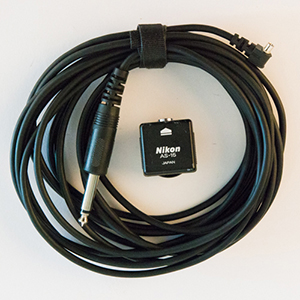
Here is a 12-foot sync cord that times the strobe flash to the camera's open shutter and a Nikon brand safe-sync adapter. Photo by Felicia Kieselhorst.

When shooting with continuous lighting, you will operate your camera normally. When you use strobe lights, you need to time your light to fire exactly when your camera shutter is open.

The simplest way to do this is to connect your camera and lights to each other via a long sync cord. Some cameras, usually higher-end models, have sync ports built in. Others need an adapter that sits on your hot shoe, usually referred to as a safe sync.

If you are clumsy like I am, sync cords are tripping hazards. I prefer to use a remote trigger for my lights. The name brand for remote triggers is Pocket Wizard, and some lights even have a compatible receiver built in.
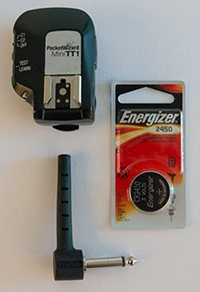
My lights have built in receivers, so I have just a transceiver for my camera. I always keep an extra battery on hand for each shoot. Some lights require the removal of an antenna in order to work in remote trigger mode. Photo by Felicia Kieselhorst.

In any case, you'll need two parts: a transmitter and a receiver. If your remote is called a transceiver, it can actually do both! The transmitter part goes on your camera (usually on the hot shoe) and the receiver part goes on your light. You'll need a receiver on each light.

When the transmitter and all receivers are on the same channel, pressing your camera shutter button will fire all your lights.


Power Settings

As you can see in the example below, there are many buttons and controls on a typical light. We'll go over these in detail:
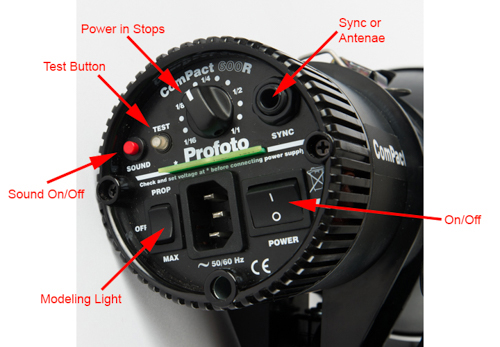
The controls found on the back of my lights. Photo by Felicia Kieselhorst.

On/Off Button is fairly obvious, you'll see it on the bottom right.

Modeling Light (bottom left) has three settings: off, prop (low), and max. Some lights might have a dial rather than a toggle, power settings in terms of stops, or something else. Remember, the modeling light is a continuous, low watt bulb that allows you to see exactly where light is falling on your subject.

Sound Button (top left) is used to turn on or off the beep you hear when your strobe is ready to fire. We'll learn why this beep matters later in this lesson when we discuss recycle time.

Test Button (top left) will fire your strobe if you press it. This is great for getting a light meter reading or for checking your remote triggers. Later in this lesson, we'll learn another important use of this button in the section on capacitors.

Sync or Antennae port (top right) is where you would plug in your PC cord, receiver, or antennae.

My lights have a dial for output power. In this example photo, it is set at slightly under ¼ power. This particular head is a 600-watt head. One of my 300-watt heads set at ¼ power would not give out as much light.

You'll need to set the power on each head separately whether using a powerpack or monolight system. How much power you need depends on the size and color of the space, the light modifier you use, the distance to your subject, how many lights you are using, and especially, what kind of lighting effect you are trying to achieve. A good rule of thumb is to start with your lights somewhere in the middle of the scale. This way, you can add or decrease power as needed.

Hand held Light Meter
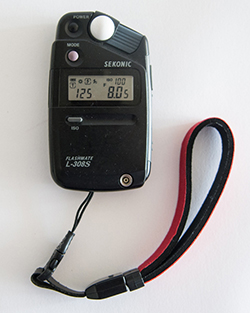
I prefer the Sekonic L-208 light meter. Affordable and compact, this meter is great for beginners. It also has features for the professional, like the ability to read flash through a cord or without one.

Until now, you may have relied exclusively on your camera's built in light meter to determine proper exposure. With continuous lighting, you can keep doing this. With strobe lighting, you'll need a hand held light meter capable of reading flash.

When metering for strobe lights, be sure you've set your light meter to one of the strobe modes, press the button on the light meter that you usually use to take an ambient reading, and then fire your strobe(s) using the test button or your camera shutter.

If you are looking for an overall reading of the scene, you'll take this reading very near to your subject and set your camera according to what your meter says.

If you are looking to balance your lights to prevent hotspots, you'll actually meter the light falling from each light, in order to make power output adjustments as necessary.

Setting Exposure for Strobe Lights

When shooting with strobe lights, you'll want to operate your camera on manual. Start by setting your ISO (generally the lower the better). Using Auto-ISO will not work with strobes.

Finding proper exposure with strobes is a little different than with constant lighting conditions. Your light output power and aperture will be your main exposure controls. Changing your aperture will do more than increase or decrease your depth of field; it will also allow more or less ambient light to hit your shutter.

Your shutter speed will be relatively fixed during strobe shooting. If your shutter speed is too fast, the shutter won't be open long enough for the light to fire properly, and you might see traces of this mix-up. The exact maximum shutter speed depends on your camera and your lights. Generally speaking, 1/200 is the fastest usable shutter speed.
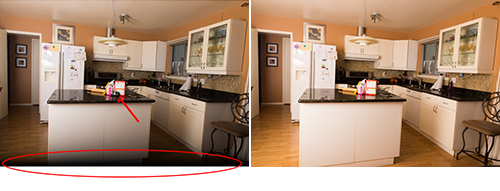
In the left image, I've circled a black fuzzy area at the bottom of my frame. This is an indicator that my shutter speed is set too fast. Bringing your speed to a slower setting will fix the problem (as you see on the right). Also notice in the left shot, my light meter is on the counter taking an overall reading of the scene.


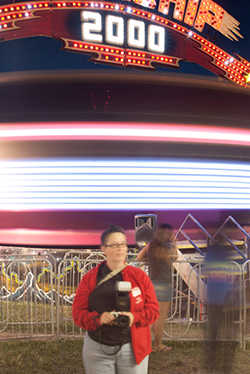
In this long exposure, the still part of the image (the 2000) is totally sharp. The fast spinning carnival ride itself is a total blur. My friend Carol is mostly sharp, due to the flash freezing her in action for part of the shot.

While speeding up your shutter speed has its limits, you can slow down as far as you'd like with strobes. The slower your shutter speed, the more you'll see ambient light such as light from windows or fixtures. With moving subjects, a shutter speed lower than 1/30 or so will show shutter drag, a blurring along the edges of the moving parts.

Now that your exposure is set and all your equipment is ready, you are ready to shoot. While you are shooting, there are two things to keep in mind: recycle time and your capacitor.

Recycle time is the amount of time it takes for your lights to be ready to shoot again at their full set power. If you shoot rapid fire, your lights will not have time to recycle, the strobe will put out less light, and the exposures will be too dark. If you wait until your light beeps before firing another shot, your lights will have recycled and you'll have consistent exposure every time.
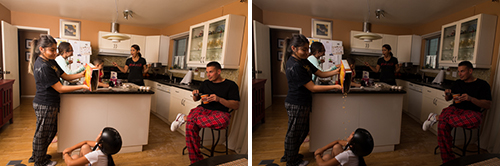
During these rapid exposures, my lights didn't have time to recycle fully, causing my second exposure to be a little dark.

A capacitor is a device on a strobe that holds an electrical charge. As a safety precaution, you should "dump" your charge after turning off your light (before unplugging) by pressing the test button. If you have a capacitor, the light will fire one final time even if the power is off. The capacitor has an effect on your actions during a shoot as well. If you turn your power output up or down, the change doesn't happen until you've dumped the higher or lower charge by firing the lights again.

Here is a checklist that encapsulates the typical workflow for using strobe lighting:


  1. Put your lights on stands and position them where you want them
  2. Plug into power
  3. Install light modifiers
  4. Connect your PC cord or connect and turn on your remote trigger system
  5. Turn on your lights
  6. Set output power
  7. Meter your current setup
  8. Set your exposure
  9. Tweak your settings, light locations, and modifiers as needed
  10. Sand bag your lights, tape down cords, and prevent safety hazards
  11. Shoot!!


When shooting tethered, the file number will begin at 0001 rather than the usual format from your camera.


Shooting Tethered

Before we put our new strobe information into play, I want to introduce another skill: shooting tethered.

Shooting tethered means shooting directly from a camera into the computer. You can shoot tethered while using ambient, artificial, continuous, or strobe lighting.

Why would one want to shoot tethered? In order to see results immediately, with edits, on a large screen. Here are three scenarios I've encountered:


  • A client, or a whole creative team, wants to see and approve photos as I shoot. I just tag their selections as they choose them.

  • An art director wants to see how a certain image ratio affects the composition. For example, many of my clients request a square crop.

  • A pregnant mom has her heart set on black and white photos. Shooting tethered allows her, and me, to visualize in black and white without imagination.


Tethering might seem like a luxury for big studio productions, but even for smaller productions it saves time to apply batch edits as you shoot and to cull as you go. You'll also know when you've got the shot and can move on.

Tether Hardware and Software

The first aspect of tethering is software. Unless you have a program to talk to your camera, all the hardware in the world is worthless. The name brand software for tethering, Capture One, costs about $300. They do offer a 30-day trial, if you want to give it a spin.

Lightroom has built-in tethering options that do a pretty good job at no added cost, so we'll focus on that in the next subsection. The downsides: occasionally, a frame won't transfer from camera to computer and sometimes the program gets stuck and needs a restart.

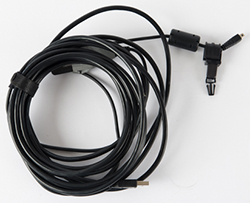
My cameras have different tether ports. To save myself from buying a cord for each, I bought a long cord with a connector that I attach to the short download cable for each camera. I gaff tape this joint together for safety. At the camera end of this cord, you can see the male end of my Jerk Stopper (discussed at left).

You'll need one critical piece of hardware in order to tether, a cord. A tether cord has a USB plug on one side and a camera plug on the other. The downloading cable that came with your camera is a (very short) tether cord. It isn't very practical to shoot with a 12-inch cord, though, is it? You can purchase a 15-foot tether cord, allowing for plenty of space between your computer and your camera.

When tethering, you put a long cord between your camera and your computer. This means that a couple of clumsy moves could really mess with your rig. Be sure to keep your computer far from the edge of the table and taped or fastened down using Velcro if possible. For the camera portion, you can purchase a Jerk Stopper to protect your tether port from needing costly repairs.

On the left side you see my cord plugged into my tether port and held into place with the Jerk Stopper. You can also see I have my remote trigger installed on my hot shoe.

Tethering in Lightroom

To shoot tethered in Lightroom, plug in your camera then go to File > Tethered Capture > Start Tethered Capture.

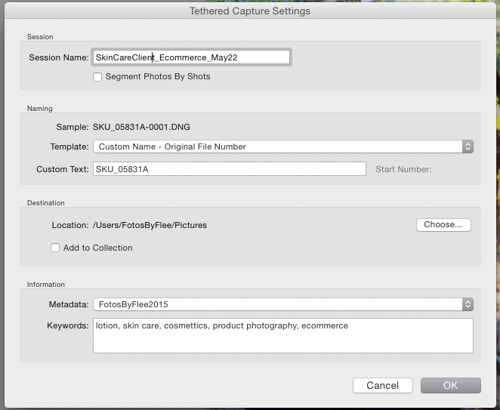
In the dialog box that comes up, you'll add a session name (this will be the name of the folder of photos in your LR catalog).

Next, you have the option to rename your files as they come in. I use this area to name files by the manufacturer's product number or by first and last name if I am doing company portraits.

You'll set the destination for your captured photos. I shoot directly into the folder structure I have set up for all my photos. I know other photographers who shoot onto their desktop or into temporary folders.

Be sure to add metadata as well, as this is one less step you'll need to do later.

The tethered capture menu

When you press OK on this menu, you'll be taken back to your Lightroom screen, with one new addition: a tethering bar. The bar is movable, so position it out of your way.

The tether bar seen during a Lightroom tethering session.

On the left of the bar you'll see the camera you are tethering from. If you have multiple cameras connected at once (like your DSLR and your phone) you'll need to select the correct camera.

Below the camera name, you'll see the name of your destination folder (that is, the session name). Centered in the bar are your exposure and white balance settings.

On the right side, "Develop settings" gives you the option to make corrections and apply them to subsequent photos. I start all my photos with a contrast and vibrancy boost as well as a lens correction since these are part of my normal RAW processing. I also take a shot with my gray card and set my color temperature. Every photo I shoot in this tether session will have those initial corrections applied, thus saving time and allowing my client to see an improved version of the photos as we go.

If you are shooting for a crop or to black and white, this would be the place to add that as well. Keep in mind that if you make a spot adjustment it will carry to the next photos, so remove those as needed.

The large circle on the right of the tether bar will fire your camera. At times, it is very handy to be able to fire the camera from the computer instead of from the camera itself.

The small x on the far right will stop your tether session. The gear icon on the far right will bring up your tether menu again. This is helpful if you are changing file names or metadata as you go. For example, when I shoot products, I access this menu with every product, to enter a new product number as my file name and to enter new descriptors in the keyword box.

More Lighting Setups

Now that you've learned to shoot tethered and explored how to use strobe lights, let's put these skills into action with some more lighting setups. Here we'll look at a few established setups such as Rembrandt and Avedon lighting.

When you have just a single light (or even two even lights) it's easy to refer to them using their location. When you add more lights, or use lights with different purposes it's helpful to have some terminology.

Key Light Main light source
Fill Light Lessens shadows without changing the character of your key light
Hair Light Also known as rim light, this is light that barely skims the edge of your subject from behind, creating nice highlights on the hair or edges
Background Light Illuminates the background of your image without affecting your subject


Loop Lighting

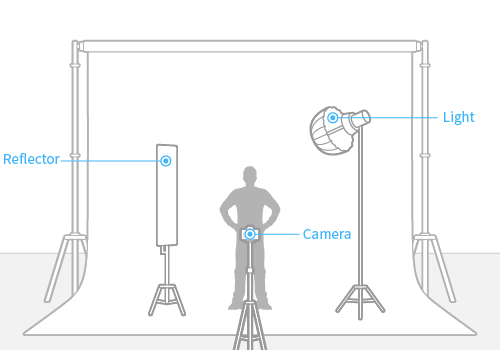
Loop lighting is a technique that creates a small loop-shaped shadow under one side of the subject's nose. Your single light is placed to the side and slightly above your subject (but not as high as in butterfly lighting). You'll probably want to use a reflector to lighten your shadow side a bit.

In this single light portrait I used a light with a large shoot through umbrella, off to the side but close to the center. A window on the opposite side added fill light while still leaving some shadow. In this case, I kept my subject very close to the background so that my light could fill in that area as well.

Loop lighting involves a light source to the side with a reflector, or secondary light source at a much lower power, to lighten facial shadows.

Side Light

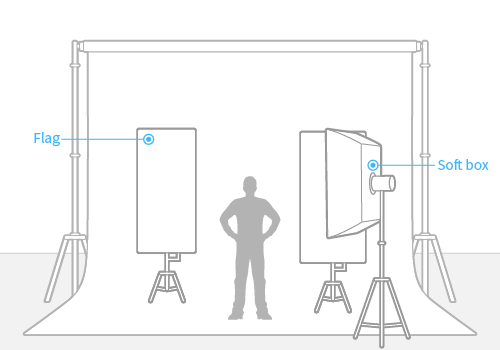
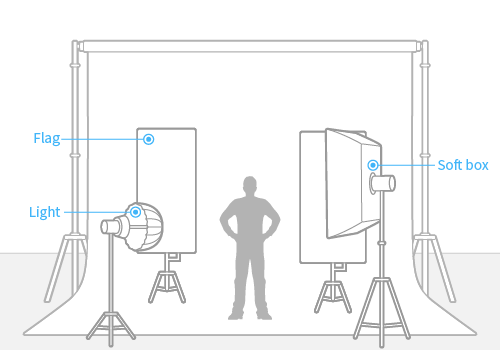
A single soft light illuminating only part of your model can emphasize the shape and form of your subject. It produces shadows and highlights, adding a dramatic effect.

In this portrait, I kept my model and light far from the background. To avoid any spillage of light onto the black background, I set up a flag to block the light. I had a single light with a softbox coming from one side.


Side lighting creates highlights and shadows on your subject with one soft light to the side.

Backlight

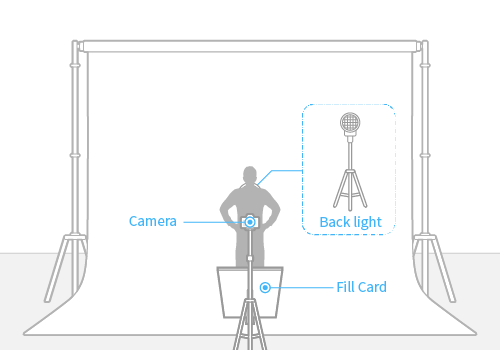
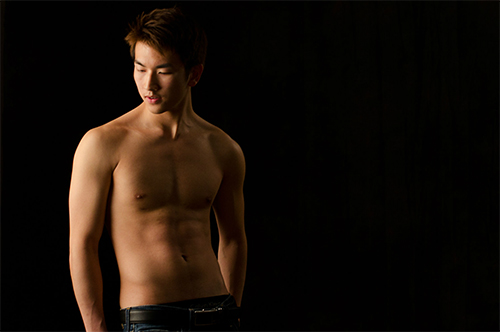
Placing your subject right in front of your light causes the edges to catch, almost creating a silhouette. This backlit technique is sometimes referred to rim lighting. A single light behind the subject creates defined edges. A fill card in front allows the photographer to add as much or as little detail to the shadows as desired.

Photo by Colin Crowdey

Backlighting involves placing a single light behind your subject, creating a silhouette effect.

Rembrandt Lighting

Rembrandt lighting is similar to the side lighting we learned about last week, but has a characteristic triangular highlight on the shadowed cheek.

This look is created with your key light far off to one side and a fill light on the other. Slight changes in the tilt of the model's head will adjust the triangle highlight to new locations.

The characteristic triangle of light on the shadow cheek indicates a Rembrandt lighting setup.
Similar to side lighting, this effect is achieved with a key light source on one side and a soft fill light on the opposite side.

Adding Hair and Background Lights

Many setups become even more refined with the addition of a hair light and a background light. Instead of reflectors, try using an additional fill light.

When setting up lighting that uses more than one source, it is a good idea to "build up". First set your key light, locking in its location and exposure. Next, add any fill lights. Note that your camera exposure and key light intensity should not change. You'll usually be able to adjust just the output of the fill light. Next, add any background or hair lights, adjusting their output as needed.

In this photo, I built upon our single light rim lighting technique from last class. I added a key light off to the right and a fill light off to the left for this three light setup. In this portrait, I used a vague mix of rim light, sidelight, and loop light. On one side, I used a light with a large shoot through umbrella for a soft, light look. On the other side, in back of my model and barely skimming her cheek, I used a light with a reflector dish only.
Here, I used one light for the subject's face and a second light is tucked behind the wall, lighting the office area in the background.

These are some of the more complicated lighting set ups that are popular with most portrait photographers. The more you continue practicing these techniques, the more you will enhance and improve your portfolio.


Color Gels

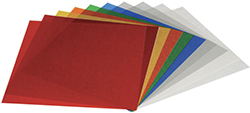
You can modify the color of the scene in your images by using color gels, or filters, on your flash. Gels come in various sizes and colors. Attach the gels to your flash using an elastic band, tape, or a velcro strap. Gels can reduce the amount of light cast on your subject so have a plan to compensate, if needed.

Using gels in your photo shoot can accomplish several purposes. They can help color correct a scene or add a creative or dramatic touch to your images. Consider using a secondary flash with a color gel aimed at your subject or the background to alter the mood of your photo.

We'll be covering color gels more in-depth in Lecture 4.

     
Learn how to power your equipment in an outdoor setting.
How to set up your lighting equipment on a sunny day.
Use gels to adjust the color temperature of your lights.
Learn how to operate Off-Camera flash units.
 

Discussion
Share your thoughts and opinions on using strobes and other advanced lighting techniques in the Discussion area.

Exercise
Carry out a tethered photo shoot using two of the lighting techniques discussed in the lecture.