Plastic Animation Paper (PAP) has a user interface that is confusing, to say the least. You can follow these steps to export your animation to an AVI.
Exporting Your Animation to an AVI
First, make sure panel "04" is open. This panel can be toggled on and off by clicking the 04 icon in the top right corner of the PAP interface.

Once the panel is open (generally you will find it in the upper left corner of the interface), choose the "Save As" icon.

This will open the "Save Animation" window. Under the file manager, above the cancel button, you will see several options for "File Type," as shown in the screenshot below.

LAP and PAP are formats specific to Plastic Animation Paper. If you wish to come back and continue working later, save your project as one of these file types.
If you choose TGA, JPG, BMP, PNG, GIF, PSD, or TIFF, you will be given the option to save the animation as an image sequence of the file type selected. This image sequence can be opened or imported into another video editing software, such as Adobe Premiere Pro.
If you choose "AVI DivX" or "AVI Cinepak," the frames will be saved as an AVI video file of the PAP animation. For Exercise Three, you must upload a movie file and not an image sequence, so go with "AVI Cinepak."

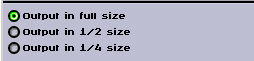
When you select "AVI Cinepak," you will be presented with the options to export the video at full size, half size, or quarter size. Most likely, a full size AVI would not exceed the 10MB Dropbox file size limit, but if it does, choose half or quarter size.
And that's all! The Plastic Animation Paper interface can be a little confusing, but once you know your way around, you should be fine.
