The best Flash work looks smooth and effortless. To get to that point, you need to first spend hours practicing your craft, much like a star basketball player.
Learning to play basketball is a good metaphor for learning Flash; while
the star forward's twisting, acrobatic shots are the stuff of SportsCenter
highlights, it is the fundamentals that win championships. The great
players have all put in thousands of hours working on their free throws
and 10-foot jump shots.
Someday, I want you to create the Flash equivalent of the windmill slam dunk, which is why in this course you will be working on the fundamentals of Flash. Master these basics, and you'll soon be ready to take greater leaps with Flash!
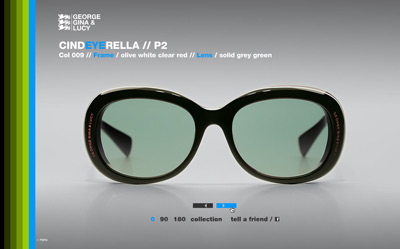 |
George Gina & Lucy is a company that uses Flash for exciting and novel navigation of its eyewear collections. Explore the site to see different types of navigation and user interaction with Flash. |
PC and Mac: One World
One of the beautiful things about Flash is that it is cross-platform.
Not only does a Flash
movie (SWF) play on both Mac and PC, the original native authoring
file (FLA) can be opened on both Mac and PC. This is an incredibly
handy feature, and one that allows a Mac user like myself to exchange
files with students, friends, and clients who are PC-based!
The screenshots you will see in this course are from the Mac version
of Flash CS5. PC users fear not! The Flash interface is the same on
Mac and PC, and the interface is updated to share a common appearance
with other Adobe Creative Suite components. A consistent appearance
across all Adobe software helps users work more easily with multiple
applications.
The methods taught in this course will work with Flash CS4 and CS5. In most cases, the instructions are the same,
but in some instances, I have provided separate notes for different
versions.
Downloads: All of the working files
for this course are found in ZIP archives in the course
downloads area, organized by lesson. Click to download them onto
your computer, and then double-click
to unzip them into folders of individual files.
When you're starting off learning any design tool, it's a good idea
to consider its applications: What is it used for? What is its core purpose?
On your Web travels, you've probably seen many examples of excellent
work created with Flash. In fact, in many cases, you might not have
even realized you were navigating a Flash interface. Let's explore
some of the main options for Flash designers. We'll look at some projects
and I'll explain why Flash was the best tool for the job.
The Flash Site
Tired of coding and tweaking HTML? Today, you can forgo the traditional
Web development process by creating your entire site in Flash. The
majority of Web users are easily able to view Flash sites, and building
in Flash presents a number of advantages over HTML or XHTML. Flash
sites download faster than many (X)HTML sites, they may
include more animation, and of course, they can be programmed with much
more
impressive
levels
of
interactivity.
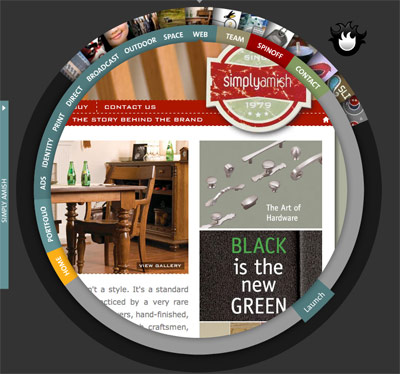 |
| Spinlight is a print and interactive agency in Illinois that specializes in design and marketing in various media, including Flash. The Flash campaigns that come out of this studio, and the studio's own Flash site, prove
to be conceptually strong, visually captivating, and highly interactive. |
If we take a look at the site for agency Spinlight, we see a number of the nifty tricks of Flash being used
to create an exciting Web design: the spinning navigation, the quick
loading of complex graphics, a highly interactive environment, and most
importantly, a nonlinear site with no beginning or ending.
Just as Flash can be used to create an entire site, it can also be
used for individual elements of interactive design: navigation bars,
buttons, and mouseover effects. Many "HTML sites" actually have Flash-enabled
navigation or other page elements.
Why so? Well, Flash allows the designer to go beyond simple rollover
effects, and create complex effects and animations that add a "look
and feel" that can't be matched in HTML-only sites.
That's another advantage of Flash: graphic-intensive sites with lower file sizes than their HTML counterparts.
Splash Animations
One of the most popular uses of Flash is to create animations that play when users arrive at a Web site for the first time, called splash pages. Done well, splash page animations evoke the visual language of movie credits. An artful, brief animation with text and graphics creates a drama and a storyline around a company's name, tagline, products, and services. It communicates the company's branding and gets the user excited about visiting the site.
Later in the course, you'll make one for yourself! We'll discuss in
detail the underlying philosophy and design choices that go into making
a splash page through the case study created for the International
Basketball League.
 |
Click here to see a splash animation for singer/songwriter Kathleen Edwards. It creates a dramatic entry point with image, animation, and music that conveys the artist's
attitude. |
Interactive Ads and Games
Who said banner ads are dead? Now, more then ever before, Flash is used for all sorts of Web ads. The banner ad is still the dominant ad medium for the ever-expanding Web, and a sophisticated animation can go a long way towards intriguing the jaded public.
Flash is perfect for creating banner ads because the small file sizes make for quick downloads, while still allowing for more complex animation than the old-school animated GIF. Beyond that, Flash enables user interactivity, allowing for boring banner ads to become immersive, interactive experiences and mini-games!
 |
Click the image
above to see a Flash banner ad created for Black & Decker
(MRM Partners). In this banner ad, the content folds out to fill
the
screen, and animations detail step by step instructions on how
to use the three products. |
Flash likes to entertain as much as it likes to work, and there are hundreds
of Flash-powered games and fun interactive experiences on the Web. On top of its graphic capabilities,
Flash is powered under the hood by ActionScript, a full-on programming
language that's built into the Flash authoring environment.
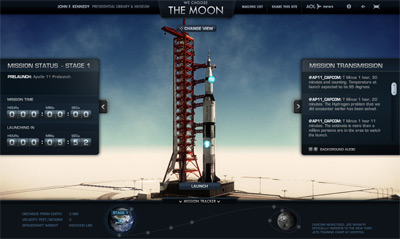 |
Domani Studios created We Choose the Moon for to commemorate the Apollo 11 moon mission. The site recreated the mission precisely 40 years (to the minute) from the actual Apollo 11 mission, including rocket takeoff. |
Flash games and applications are created using a mixture
of Flash motion effects and ActionScripting. Generally speaking,
more ActionScript makes a Flash piece more powerful and smaller, but
at
the cost of being
more complex and time-consuming to create—something to keep in
mind for the future! While you won't be learning how to write ActionScript
code for games in this basics course, we'll build a firm foundation
for doing everything we've just discussed. So, on with the lesson,
and back to basics...
Back in the late '90s, in the early days of the World Wide Web, Internet
bandwidth was limited and connection speeds were very low (these were
the dark days of the 28.8 or 56K modem, and broadband was still a future
dream for most people). Also, computer processor speeds were very slow,
compared to today's models.
FutureSplash, the ancestor of Flash, was originally conceived as a
low-bandwidth animation and multimedia tool, designed to take advantage
of vector graphics to achieve small file sizes, and therefore shorter
download times. To make more sense of this idea, let's take a look
at the two main types of computer graphics.
Bitmaps vs. Vectors
A bitmap is an image made up of tiny
squares, or pixels. Every pixel
is contained in the graphic file. For example, an image
taken
with
a digital camera is a bitmap image. Today, the most popular bitmap
image file format is JPEG, or .jpg if you want to use the file extension.
 |
When enlarged, you can see the little square pixels that make up the image. Each pixel has a color assigned to it. |
Hint: It's good to memorize the different file type extensions (the
three characters after the file name and dot) so that you can tell
what format a graphic is in just by looking at its
extension.
Photoshop is the most well-known program for editing or creating bitmap
image files, and there are many other programs that perform similar
functions. For Web graphics, Photoshop and Fireworks are both popular.
Unlike a bitmap, a vector image doesn't
contain information about pixels. Instead, a vector file uses mathematical
equations that instruct
the computer how to "draw" the image onscreen.
So
instead of
describing where all the pixels are in a circle image, a vector file
describes the equation that creates the circle. Illustrator and CorelDRAW are well-known vector drawing programs.
Vector images tend to be non-photographic, or line art images, and they tend to be small. For
example, an image of a circle filled with a color or gradient can be
drawn as a vector graphic in less than 5 kilobytes (5 kB).
Additionally, vector images have another big advantage in that they can be scaled to any size without increasing file size or losing clarity. Bitmap images, on the other hand, do take up more memory at larger sizes, and can suffer from the jaggies if they are scaled up.
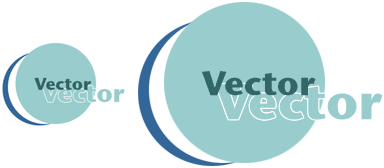 |
On the left, a vector image of a logo at 100%,
crisp and smooth. The logo on the right is the same image
at 200% and witness the difference: none! That's the beauty
of vector files; they can be resized and altered over
and over without losing a speck of quality. |
So, for less complex graphics, vector images can be much smaller than bitmap images, and can scale more efficiently. However, it's an old myth that vector graphics are always smaller than bitmap images—the more complex a vector image is, the harder the computer has to work to draw it. While it is possible to vectorize a bitmap image, the result will often be so complex that it becomes larger than the original bitmap image!
Flash vs. GIF Animation
So what does this all mean for Flash?
In the early days of the Web,
GIF animation was the standard. GIF animations were bitmap
graphic
animations,
set to the
lowest common
denominator; their sole advantage was that they could play in
the browser without a plug-in.
However, GIF animations suffer from bitmap size issues; any animated GIF larger than a banner ad quickly becomes huge, and more complex graphics cause the same problem, so GIFs are really limited in what they can do.
Flash, on the other hand, because it's vector-based, and has state-of-the-art
file compression, quickly outdistanced GIFs as
the preferred way to animate for the Web. Today, GIF animation is still
around, but its popularity is very low, and getting lower...
The Ubiquitous Flash Plug-in
The Flash plug-in been included with most new browser
downloads since 1999, and many devices come
bundled with Flash, making the Flash plug-in the most popular browser addition of its type. In fact, according to Adobe, upwards of 99% of users are able to view Flash content.
Years ago, Flash was often regarded as an esoteric addition to a site, unnecessarily complicating matters. Nowadays, with the penetration of Flash into almost every browser, this concern is greatly diminished.
Of course, there are people who don't like Flash, and have either
uninstalled it or surf with it turned off. While this may be incomprehensible
to you and me, it is a reality that Flash is an add-on—for this
reason, sites that are purely informational and need to be viewed by
as wide an audience as possible (think your local elementary school's
Web site) are best done in basic (X)HTML and CSS.
But for graphic impact and interactivity, the only real competition
for Flash today is DHTML. DHTML interactivity
is achieved using XHTML, JavaScript, and CSS, and can be authored with software
such as Adobe Dreamweaver (an application used for Web layout).
The main advantage of DHTML is that users do not require a plug-in.
But there are many drawbacks to DHTML as well.
OK, now that you've heard all about the magic of Flash, let's dive
into it. Click on your Flash application to open it up. Go to File > New to
open a blank document.
You'll be asked what kind of Flash file you'd
like to create, so select "Flash
File (ActionScript 2.0)". We won't use much ActionScript in
this class so we're not going to jump ahead to ActionScript
3.0 here.
 |
The Flash interface |
The first thing you'll notice is an abundance of areas filled with tools and settings. Like Photoshop and many other applications, Flash has many different panels that can be opened or closed within the program and dragged around at will. If you're not careful, your desktop can look like this:
 |
Too many Flash panels = panel pandemonium. |
While all of these panels provide access to different functionalities
within Flash, some are definitely more important than others. To start,
we are going to focus on the big four panels: the Stage, the Timeline,
the Library, and the Properties panels. Later we will go into more
detail
about each of these, but for now, here's a basic overview.
The big blank space you see below is the Stage, and below that is the Timeline:
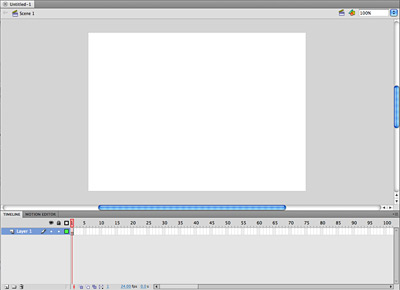 |
All the world's a Stage. |
 This is where the visual layout of a Flash movie occurs. You can think of it as the screen for viewing a Flash piece, which can be set to any size you desire. It's one of many metaphors that Flash borrows from the theater, film, and traditional animation. Flash animations, for instance, are usually called movies. Each movie is composed of a series of units of time called frames. The Stage you see above is where it all comes together; you can compose each frame of your movie by drawing directly on it, importing artwork, and moving it around to create the optimal composition.
Below
the Stage, you can see the Timeline extending
like a ruler from left to right. Just as it sounds, the Timeline helps
you edit and manipulate the movie frame by frame. The Timeline has
been around since the beginning of Flash and is at the heart of the
Flash design metaphor. When a Flash movie is played, each frame is
displayed, one after another, as the playhead moves
from left to right down the Timeline. Just to add another wrinkle,
you can also edit and arrange individual frames as layers, or have
many layers running concurrently as part of the same Timeline. More
on layers later.
The Library is the backstage area where
the cast of your movie sits, waiting to be put onstage. The Properties panel is where settings for your document or any selected object can be viewed and set. If you don't see the Library or Properties panel, choose them from the Window menu (Window > Library and Window > Properties).
Like Photoshop, Illustrator, and other graphics programs, the Tools
panel (right) is where you'll find the tools for selecting
elements on the Stage, and for drawing shapes and adding text
to the Stage.
We'll be going more in-depth into each of these major Flash interface areas later in the course, but for now you've got an idea of what they do.
File Formats and File Extensions
If you can't see the file extensions when browsing through files on
your computer, go to your computer's System Preferences (Mac or PC),
and
turn on the
option
to view file extensions. This is important, because it helps you
identify what kind of file you are dealing with.
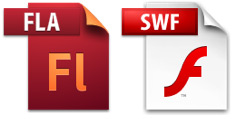
The file you have created is called a FLA and
is the native, working file in Flash with extension .fla.
The second kind of Flash file, called a SWF after its file
extension, .swf. This is the movie, the
executable output. A .swf is compiled,
meaning that it is the final form and cannot be edited. In
other
words, this
is the final version that will be played for the final audience. It's
key to remember the difference.
The moral of this story? Always keep one copy of each file type on
a project. If you save your working file as a SWF and don't keep your
FLA, you are up a creek, as the working file is lost. Conversely,
always remember
that
you cannot
publish a FLA on the Internet.
Keyboard Shortcuts
All of Flash's functionality can be accessed in two different ways: from the pull-down menus across the top of the Flash application, or by using key
commands, also known as keyboard shortcuts.
Key commands are one of the secrets of the pros, simply because they
are much faster to execute. When beginning to learn Flash, you need to
go slowly in order to find where things are, but later on you'll want
to use key commands as much as possible because they will help you work
much faster. Take it from me, you'll be spending a lot of time on Flash
as it is, so learn the key commands and save yourself some valuable time!
Throughout the course, I will be giving you key commands to execute important Flash functions. An important distinction is that whenever I refer to the Ctrl key on the PC, the Mac equivalent is the Command key.






 Explore some of the main design applications for Flash through real case studies.


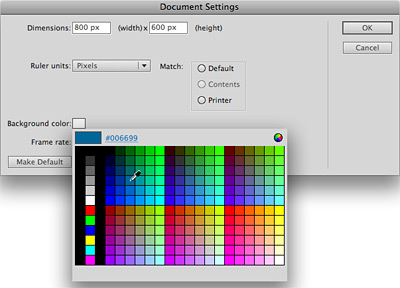
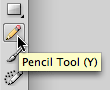 Also, since it's hard to remember what every tool is called, Flash has included
"tool tips," which are little labels that will pop up if you hold the
mouse over a tool without clicking.
Also, since it's hard to remember what every tool is called, Flash has included
"tool tips," which are little labels that will pop up if you hold the
mouse over a tool without clicking. , allows
you to draw lines on the Stage, using the Properties panel to set
the width and style of the line as well as the color. Go ahead and scribble
with the pencil, varying the line width and color to achieve different
effects.
, allows
you to draw lines on the Stage, using the Properties panel to set
the width and style of the line as well as the color. Go ahead and scribble
with the pencil, varying the line width and color to achieve different
effects.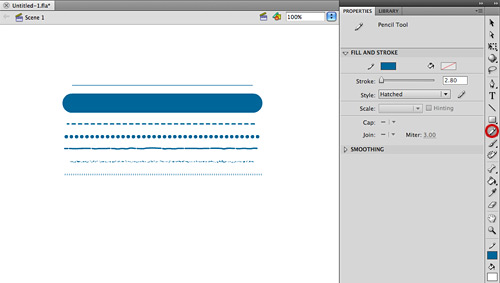
 and
use the Pencil tool to draw a rough circle on the stage.
and
use the Pencil tool to draw a rough circle on the stage. 
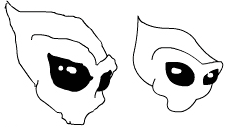
 or press Ctrl/Command+A to select everything, and then hit the Delete key.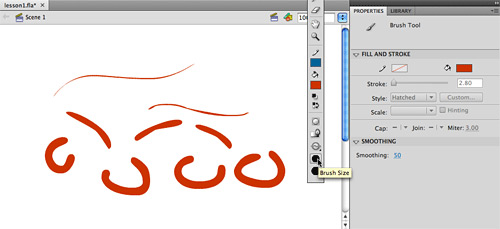

 is
an innovation that was inspired by Illustrator. While the Pencil
and Brush tools are "bitmap" tools,
the Pen is a tool used for drawing "vectors" or lines and shapes
that are mathematically defined by points
and curves. Flash's Pen tool is capable of creating complex curving lines and
shapes, and with Adobe's acquisition of Flash, now behaves similarly to the Pen tool in
Illustrator
with more accurate drawing and fewer overall points.
is
an innovation that was inspired by Illustrator. While the Pencil
and Brush tools are "bitmap" tools,
the Pen is a tool used for drawing "vectors" or lines and shapes
that are mathematically defined by points
and curves. Flash's Pen tool is capable of creating complex curving lines and
shapes, and with Adobe's acquisition of Flash, now behaves similarly to the Pen tool in
Illustrator
with more accurate drawing and fewer overall points. . Working
like its namesake, you can erase graphics created with the Brush or
Pencil tools by scrubbing across them with the Eraser.
. Working
like its namesake, you can erase graphics created with the Brush or
Pencil tools by scrubbing across them with the Eraser.