Sitewide Link Changes
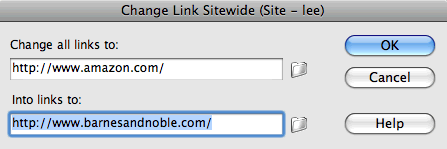
Bad news, the boss called and the deal with Amazon is off. All those links throughout the site to Amazon.com need to be changed to BN.com. Yeah, I know the links are on every page—but the boss offered to buy you some coffee to help you stay awake for this!
Hardworking designer, you can pass on that cup of coffee—little does your boss know that Dreamweaver's on your side. This type of situation comes up frequently, whether it's off-site URLs that need a switch, or links within your site—and the Change Link Sitewide feature comes to the rescue.
|
For off-site URLs you must type the full URL including the http:// prefix. For internal links, you may use the folder button to browse to files. |
You can access this feature from the Site menu (Site > Change Link Sitewide). Enter the old and new URLs, click OK, and let Dreamweaver do the work for you. Before making the changes, Dreamweaver will give you a prompt showing all pages with the offending link and let you make a final decision to OK it or cancel.
The Results Panel
The Results panel (Window > Results) exists to generate reports on an entire site—from broken links to redundant code to browser compatibility. Each tab of the panel handles a different function accessed by the green play button on the left. You can use the Results panel to check your site for potential problems and speed up any fixes you need to make.
|
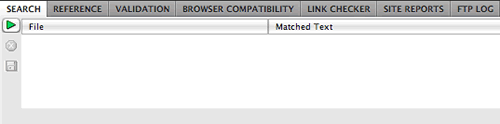
At first, the main area under the Results tabs will be blank. Clicking the green play button will activate the report and display the results. |
Search Reports
Clicking the green play button under the Search tab
pulls up the Find and Replace dialog you're familiar with from the
Edit menu. After you've run a search, the results will appear in the
Results
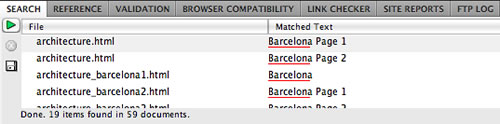
panel. Double-click one of the results to jump to that particular page element.
|
I searched for the word "Barcelona" in my entire current local site. I can double-click any occurrence to jump to its precise location on the page.
|
Code Validation Reports
The Validation tab is handy for code purists who want to make sure that their code is legitimate by current standards. Clicking the green play button gives you a choice of whether to validate the entire site or just the current page. You can also change your validation settings (choose the Validator category of the Preferences window).

|
This is the validation report you would like
to see—no stop sign icons, meaning no problems to fix.
|
Items resulting in validation alerts won't necessarily break in the browser, but the code is not considered valid by the current standards.
Browser Compatibility Check
The next tab is Browser Compatibility Check. This is great report to identify CSS-related issues in a range of browsers.
|
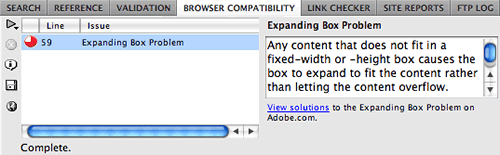
Dreamweaver will identify any potential issue—and what browser it affects. |
You can also visit the Adobe
CSS Advisor Web site to research common browser bugs and their
solutions.
|
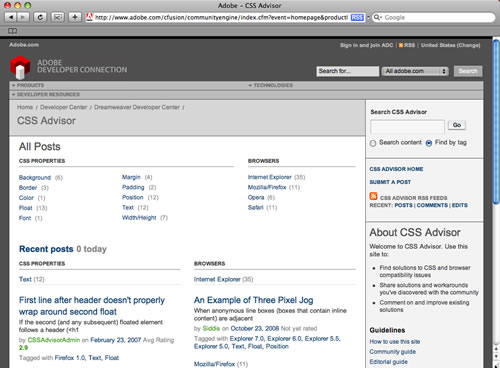
The CSS Advisor Web site is
a online community devoted to CSS. |
Link Checking Reports
The Link Checker report delivers just what you would expect—a listing of broken or otherwise problematic links in your site.
You can choose to check just the current document, your entire site, or selected pages or folders of your site. If you are checking selected files, you must first highlight the files in your Files panel, then choose "Check Links for Selected Files in Site" from the play button menu.
After running the report, you have three choices of results to view,
found in the Show dropdown menu. The first and most useful is Broken
Links. Dreamweaver will find any link that does not have a file on your
hard drive associated with its path. Double-click to open the page
with the broken link, or click once to browse to the correct path directly
from the Results panel.
The External Links report will show you all off-site URLs and "mailto:" email links—it doesn't know whether they are broken or not. It is a good idea to scan external links for any typos or other mistakes.
Finally, check the Orphaned Links results
to find stranded files that are not linked to anything else in your site.
This includes HTML files as well as any other files (CSS, images, and
so on) that don't appear to be in use. You can
delete orphaned files from this window.
HTML Reports
Finally, we'll look at the Site Reports tab.
Pressing the play button will pull up a dialog with reporting choices
for HTML and Workflow, as well as a menu for you to choose the document(s)
your report should run on.
We'll skip over the Workflow choices for the moment and cover them in the next section so we can focus on the more critical HTML Reports.
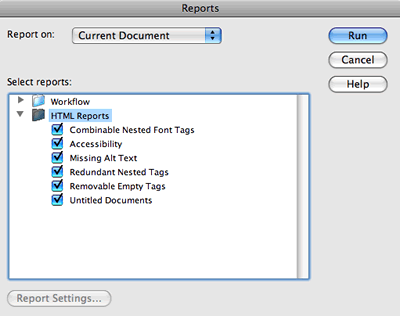
HTML Reports alert you to problematic code like redundant nested tags as well as common omissions like untitled files or a lack of Alt text on your images.
The Accessibility report refers to site accessibility guidelines for visually impaired users. You can refine the types of accessibility suggestions offered by this report by selecting Accessibility and clicking Report Settings.
|
Check the reports you wish to run, then click Run. The more reports you select, the longer the results will take to generate. If you're reporting on a very large site with all reports selected, a lunch break might be in order. |
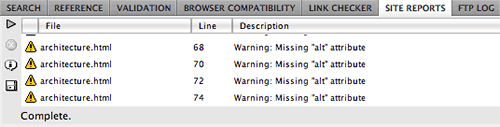
When the results are generated from your selected HTML Reports, the Results panel will populate with file information, a description of the problems, and the line of code in which the problem is located. You can double-click to open and correct the document as needed.
|
If you have many, many items that need correcting, you might want to save the results by clicking
the disk icon on the left. The results will be saved as an XML
file. This feature can be used on other reports in the Results
panel
as well. |
Working Collaboratively
Site development is often handled as a team with files that are shared over a network. When dealing with a designer, a developer, and a technology specialist (or maybe even several of each!), the same site files are often used by a number of co-workers. This can be a symbiotic relationship, or one that leads to chaos. A fist fight almost broke out one day at a previous job of mine when the technology specialist totally overwrote two full days of the Web developer's work!
Company employees with no Web experience are often given the task of updating Web page content—sometimes accidentally destroying a design or important programming features in the process.
Now that you know the power of Dreamweaver, I bet you're not surprised to find out that Dreamweaver can handle a collaborative work environment to keep things running smoothly. Let's wrap up this final lesson with a look at how it's done.
Check In/Out
Previously impossible without sophisticated network software, Dreamweaver allows collaborators to lock files that are accessible to multiple users.
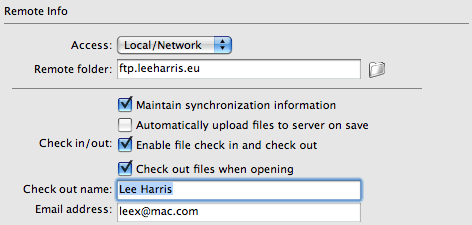
Enable the check-in/check-out feature by going to Site > Manage
Sites. In the Remote Info category
of the Site Definition window, choose "Local/Network" from
the Access menu. Check Enable
file check in and check out.
|
When enabling this feature, enter a check-out name so collaborators will see who has checked out the file. Optionally, you can add an email address so collaborators can email you regarding the file(s). |
To check out a file, simply select it in the Files panel (Remote Site) and click the Check Out File(s) button  . This will download the file to your hard drive. The Files panel will show all connected users what files are locked and who has them checked out.
When you finish working, check the file back in by selecting it in your Files panel (Local Files) and clicking the Check In button  .
.
For busy projects with lots of team activity, you can run workflow reports that display who has checked out a file and which files have been modified recently.
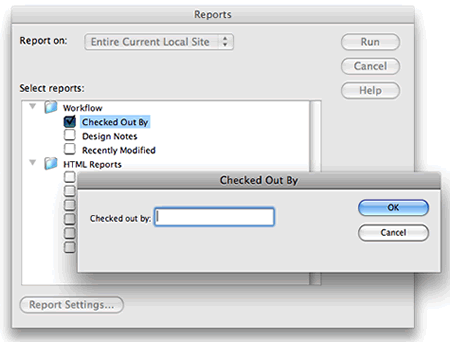
Select Site > Reports. Select a workflow report and click the Report Settings button at the bottom of the dialog.
|
Check the Workflow report you wish to run, then click Report Settings. Repeat the process for any other workflow reports. |
Run the Checked Out By report to see a list of all documents checked out by a specific team member. Enter the name of a team member, and then click OK to return to the Reports dialog box.
If you need to see which files where modified during a specific time frame, run the Recently Modified report. Enter date ranges and location for the files you want to view.
Choose Design Notes to run a report listing all Design Notes for selected documents or for the entire site. What are Design Notes, you might ask? Let's say you finish up a revision to the home page of your latest Web site project, and you post the changes for review by your Art Director. You would go to File > Design Notes to add information on the status of the document (revision), what changes were made (new color scheme), how the design decision was reached (client feedback), and what needs to be done now (waiting for illustration artwork). Very helpful information that I'm sure your Art Director will appreciate.
Synchronizing Sites
You're working in New York, and your co-designer is in Barcelona. You both need access to the same HTML files. Not a problem.
Before you make any changes to the files, make sure that your European counterpart hasn't already done the work for you. Click the circular Synchronize icon the Files panel to synch the local files on your computer with the remote files on the server.

|
Click the Synchronize icon, or choose Site > Synchronize from the flyout menu in the upper-right corner of the Files panel. |
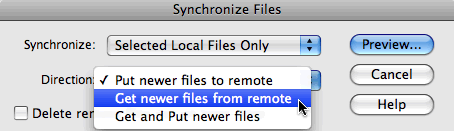
The Synchronize Files dialog appears. You can choose to synchronize specific files that you've selected in the Files panel, or the entire site. You can get new files from the remote server that your co-designer has modified, or post the new files from your local site that you have completed, or both.
|
It goes both ways—get newer files from the remote server or post newer files from your local computer. Either way, you'll be working on the latest version. |
Click the Preview button. Dreamweaver goes to work, comparing the modification dates for each file, local and remote. You'll get a list of all the files that need to be synchronized. Overwriting files is a serious action to take, so review carefully before executing the synchronization.
Adobe Contribute
|
With Contribute, anyone can add simple content updates while you handle the technical stuff. |
Finally, I should mention a software program that is used for collaborative environments that include non-Web workers. Contribute allows
anyone, no matter how "non-technical" to publish content to
a Web site without interfering with the page design or functionality.
Contribute is a stand-alone program, but it integrates with Dreamweaver. You can administer a site and delegate user roles directly from the Dreamweaver Site Definition window.
If you are interested in seeing how this works, download a free trial version
of Contribute from the Adobe Web site.
 |
|
 |
| |
Install Contribute
- In order to administer a site, Contribute must be installed along with Dreamweaver.
Enable Contribute for your Web site
- Launch Dreamweaver and choose Site > Manage
Sites. Select the site you wish to enable and click
Edit.
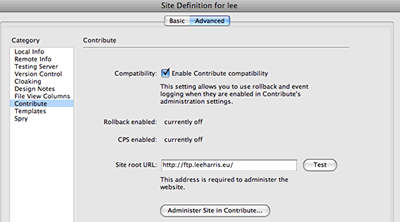
- Choose the Contribute category (you won't see this category if you haven't installed Contribute).
- Select the Enable Contribute Compatibility check box.
Launch Contribute
- To launch the Contribute Site Administrator, click the Administer
Site in Contribute button. This will open the Administer
Web site dialog.
Define User Roles
- The first task at hand is to define the members of your
team. Notice that there are three type of roles:
- Administrator: If you are setting up the site, this is probably you. The Administrator has total power. You can edit, modify, and publish Web pages using Dreamweaver or Contribute. The Administrator is responsible for defining user roles and giving other team members access to the site.
- Publisher: Publishers can modify and publish content from within Contribute.
- Writer: Writers can modify content, but they can't publish. All drafts are sent to a Publisher or Administrator for review before going live on the Web site.
- Click the Edit Role Settings button to define responsibilities for each member of your team. You can decide which folders the user should have access to, whether the user can modify page elements or text only, define the styles and fonts the user can apply, and restrict or allow the creation of new pages.
Send Connection Keys
- Click the Send Connection Key button to send each user the necessary information to connect to the Web server. You can choose to send the Connection Key by email. All the user has to do is double-click the Connection Key file and enter their user name and password—the site will connect automatically.
Edit and Publish with Contribute
- Now that your user is connected, using Contribute to make basic edits is easy.
- Publishers can click the Edit Page button to open a page in Edit mode, then click the Publish button to upload to the Web server.
- Writers can edit the page, then click the Send for Review button to send their changes to the Publisher for approval before going live.
|
|
 |
|
 |
Using Dreamweaver, you can collaborate with other team members in harmony and (hopefully) a peaceful work environment.




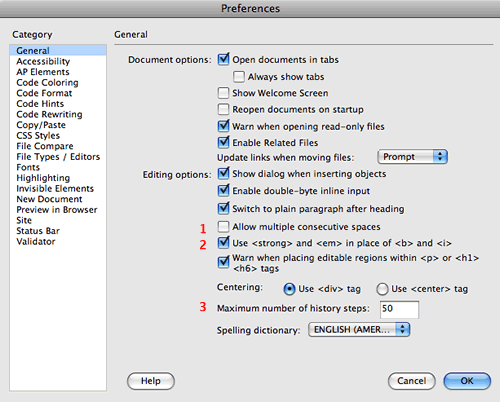
 Learn to customize Dreamweaver preferences and panels to specific needs.


 at the bottom of the panel.
 at the bottom of the panel.