Dreamweaver I | Cascading Style Sheets


Cascading Style Sheets

Coding Optional. With just a few clicks, you can break free of some of the limitations of straight HTML.

Few areas of Web design have a bigger buzz right now than cascading style sheets, also known as CSS.

CSS is a designer's dream; it offers the opportunity to discard HTML's kludgy formatting in favor of a lighter, more global approach.

Style sheets speed the designer's workflow, enabling you format multiple Web pages (hundreds, if you dare!) all at once.

In this lesson, we will explore Dreamweaver's CSS tools in depth so you can exert precise control over typography, color, and spacing.

In this lesson, you can expect to:

Discover the purpose and uses of CSS.
Learn how internal and external style sheets are handled.
Learn how to create Type, Class, and ID selectors.
Explore the various text and design style attributes.
Learn how to create list-based navigation.


Don't be intimidated by CSS— Dreamweaver makes CSS just as easy as HTML.


CSS, Cascading Style Sheets, styles, and CSS rules are synonymous.


Always save your external style sheet (a .css) file in your local root folder.


Store all of your styles within a single .css file. It will be easier to attach and apply to multiple Web pages.


When you create a new external style sheet, Dreamweaver automatically links it to the open HTML page you are working on.


Benefits of CSS


The power of cascading style sheets is hard to ignore. The secret of its beauty is the level of control you, the designer, get to wield over your site creations. Settings that were once rigidly defined by HTML can be easily overridden.

Don't like underlines on your links? Let CSS axe them. Need the lines of your paragraph spaced farther apart? It's done. Want to apply these changes to your entire site and still have time for lunch? De nada.

Unlike JavaScript, DHTML, and other add-ons to HTML, the learning curve for CSS is gentle, especially using Dreamweaver's CSS tools. Better yet, W3C (the World Wide Web Consortium) recommends CSS for text formatting over the traditional approach of using HTML font tags, citing the fact that HTML is not meant to handle high-level formatting, and that CSS code loads faster.

CSS is well-supported by modern browsers (modern browsers support CSS version 2, and some of the version 3 specifications). The most common attributes appear just fine across the main browsers in use today, though some vary a bit on different browsers. We'll discuss these later in the lesson when we cover specific styles.

The moral: With today's improved browser support, you should definitely be using CSS on all your pages.

The CSS Styles Panel

Dreamweaver handles all CSS management within a single panel, called the (markedly redundant) CSS Styles panel.

You'll find the CSS Styles panel on the right side of your workspace, or Window > CSS Styles.

Clicking the menu icon in the upper-right corner of the panel will present options for creating new styles, editing existing styles, creating styles in an external editor (coding them by hand, no less), or attaching an existing style sheet to your HTML page.

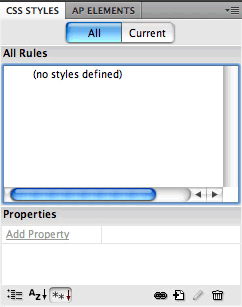
The CSS Styles panel has two views—All and Current, which you can toggle using the buttons at the top. The All view lists all the styles in the current document, as well as any external styles attached to the document. The Current view lists styles that apply to the currently selected page element.

CSS Storage and Hierarchy

Before you revel in the fun of designing and applying styles, you'll need to decide where your styles will live—in a separate CSS file that "talks to" your HTML files, or within the HTML page itself. Let's look at the pros and cons of each approach.

Internal Styles

Internal styles, as you might expect, are styles that are contained internally within the HTML document—specifically within the <head></head> tags, for you code nuts out there.

In the example above, an internal style called "caption" was placed within the <head></head> tags of the HTML file.

Internal styles within an HTML file only apply to that same HTML file. If you want the other pages in your site to use similar formatting, you would have to create the same styles all over again. This is limiting, as one of the great things about CSS is the ability to reuse the same styles throughout a site.

The solution is to use an external style sheet.

External Style Sheets

External style sheets are files with the extension ".css" that contain style sheet information.

If you hang around with any other Web designers, you might have heard the buzz phrase "separate content from presentation." Well, this is exactly what an external style sheet does. The HTML file contains the content—all the text, images, form elements, and so on, that you want to include on your Web page. The CSS file contains the instructions on how to present that content—how the text should be formatted, how images should be aligned, how the colors should display, and so on.

External style sheets can be attached (often described as "linked"—not to be confused with hyperlinking) to any number of HTML pages, making the styles available throughout an entire site.

“Will That Be to Stay or to Go?”

When you create a new style, Dreamweaver will ask where the style should be saved: internally (right there in the html file) or externally (wrapped up "to go" in the external style sheet).

To create a new style, click the menu icon in the upper right corner of your CSS Styles panel and choose New—or simply click the New CSS Rule button at the bottom of the panel internal.

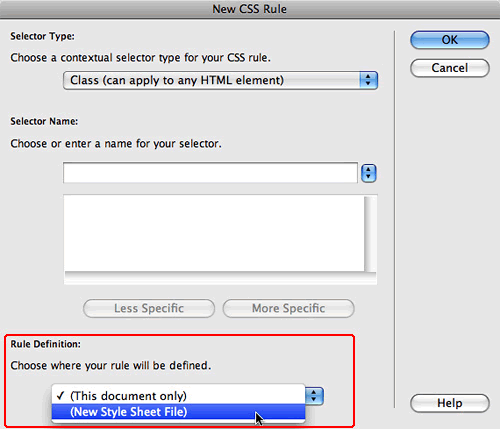
You'll have the choice to start a "New Style Sheet File", saving the style in an external style sheet.

internal

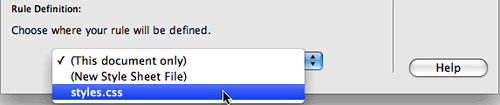
Choose where your rule will be defined: internally (This document only) or externally (New Style Sheet File).

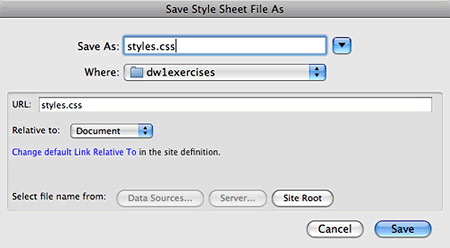
A save dialog will prompt you to save the new external style sheet in your local root folder:

Save your new external style sheet in your local root folder.

After you've created a style sheet file in your site, it will be listed in the "Define In:" menu. When you create your next style, simply selected your external style sheet from the menu.

To add styles to an existing sheet, be sure to select it from the menu, otherwise you might end up creating additional sheets or internal styles by accident.

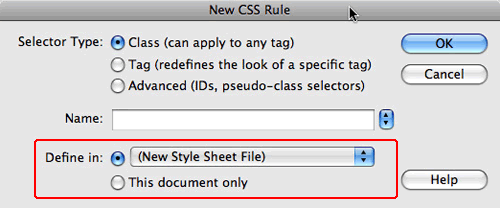
In Dreamweaver CS3, the New CSS Rule dialog has a different interface, but the same options: Define the rule externally in a new style sheet file, or internally, in this document only.

internal

In Dreamweaver CS3, the "Define In:" radio buttons toggle between external style sheets and internal style sheets ("This document only").

It's that easy—just remember to define each new style in your external style sheet.

Attach and Multiply

When you create a new external style sheet, Dreamweaver automatically links it to the open HTML page you are working on.

To apply the external style sheet to the other pages in your Web site, you'll have to attach it yourself. Choose Attach Style Sheet from the menu in the upper-right corner of the CSS Styles panel, or click the Attach Style Sheet icon .

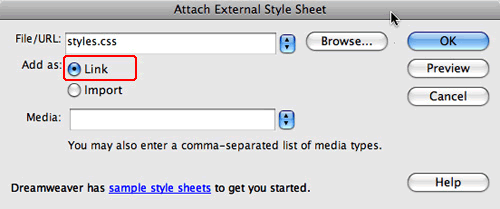
Browse to the .css file you'd like to attach, make sure the "Link" radio button is selected, and click OK. Repeat this process for each page in your site.

Stick to the "Link" button when attaching style sheets. The "Import" button incorporates code that is not compatible with all browsers and offers no real benefits over linking.


Search engines pay more notice to text formatted in heading tags. Using proper markup will improve your search engine rankings.


Give your class selectors descriptive names, such as .intro, .caption or .sidebar.


Format most of your content with tag selectors. Then add class selectors for any extra elements that don't fit as tag selectors.


ID selectors begin with an #, for example, #copyright.


An ID selector can only be applied once per page.


Descendant selectors are used to select elements that "descend" from another element higher up in the document family tree.


Pseudo-class selectors apply to elements in a particular state—for example, a link that has been visited.


Only fill in the fields specific to your CSS rule—leave the fields you don't need alone so they conform to the default settings.


CSS Selectors

When you create a new style, you will be asked to choose a "selector type." Confused already? Don't worry, this is more simple than it sounds.

A CSS rule consists of two parts: the selector and the declaration. The selector tells the browser what to format and the declaration tells the browser how to format it.
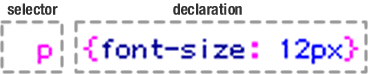
For example, the CSS rule above is an instruction to "select all the paragraphs and set the font size to 12px."

Tag Selectors

Tag selectors are used to redefine HTML tags. Browsers come with built-in formatting for HTML elements like <h1> text, <p> paragraphs, and <strong> bold text. An un-stylized text block might look like this:
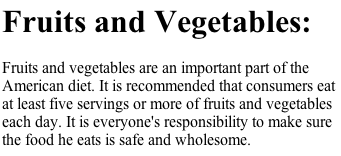
The default setting for headers is big and bold.

Using CSS, you can redefine the appearance of each element, changing the font size, style, color, and margins as needed.
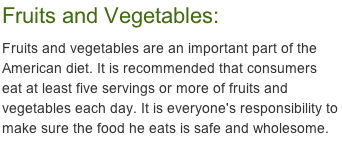
A h1 tag selector was used to redefine the appearance of the header. A p tag selector was used to format the paragraph text.

If you redefine an HTML element like the <p> tag, the new formatting will apply automatically to all paragraphs throughout the site. This is where you really see the power of CSS.

Tag selectors do require some knowledge of HTML tags and how they are used. Even though you can be a master of Dreamweaver without being much of a code head, you should still be familiar with basic tags. A few handy ones are listed below.


body: Text formatting on the <body> tag will apply to the entire page. This is useful for adding background colors or patterns.

h1: H1 tags are used to format page headers. H1 text should indicate the central topic of your entire page. 

h2 - h6: H2 tags are used to format sub-headers. There are six levels of headings, with h1 as the most important and h6 as the least.
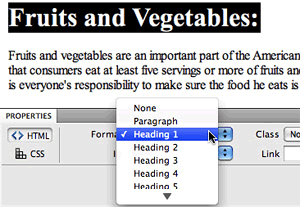
To format your text with heading tags, select the text, then use the Format menu in the Property inspector.

p: The <p> tag is applied every time you hit the return key to create a full paragraph break.

em: Text enclosed in <em> tags is italicized. Using CSS, you might decide to format the italic text in a different font or color to make it stand out even more.

To format text with the em tags, select the text, then click the italic I icon in the Property inspector.

Dreamweaver CS4 users: Toggle to the HTML view of the Property inspector if you want to insert an <em> tag. The CSS view has a twin I icon that creates a CSS class style rather than a html <em> tag.

strong: Text enclosed in <strong> tags is bold. Using CSS, you can control the exact appearance of bold text.

Dreamweaver CS4 users: Clicking the B icon in the HTML view of the Property inspector will wrap the text in <strong> tags. Clicking the B icon in the CSS view of the Property inspector will create a class style.


Creating a tag selector begins in our handy New CSS Rule dialog, and you know how to get there.
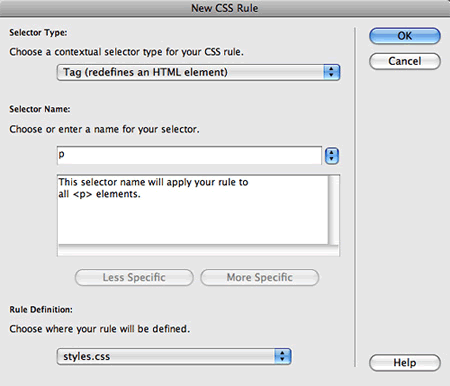
I've selected the p tag for my new style—one of the most common and most useful tag selectors.

Select Tag from the Selector Type menu. Choose a tag from the menu to the right of the Selector Name field. Click OK and you'll enter the CSS Rule definition window, which we'll explore shortly.

Dreamweaver CS3 users, your New CSS Rule dialog looks quite different, but you have the same three steps to carry out: choose the tag selector type, choose the tag you want to format, and save to your external style sheet.
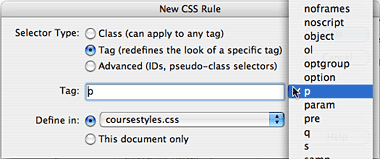
The Dreamweaver CS3 New CSS Rule dialog.

Class Selectors

Class selectors (named for the "class" attribute) do not rely on HTML tags. You can apply classes anywhere, anytime, to any element you like.

You'll find that class selectors come in handy for text that introduces a paragraph, specific "callout" words or phrases, dates, captions, or any other areas that differ from the standard formatting you created with your tag selectors.
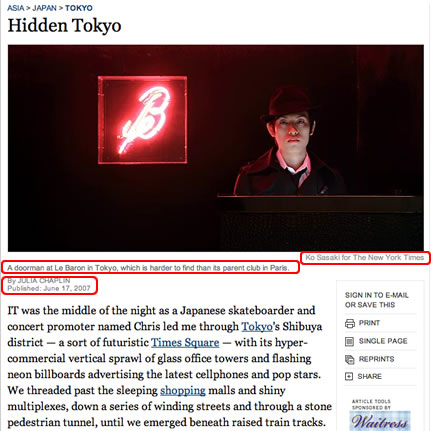
This New York Times travel article page uses tag selectors to format the "Hidden Tokyo" <h1> header and <p> paragraph text. For the photo credit, caption, byline, and date, class styles were applied.

CSS novices tend to use mostly classes and avoid tag selectors altogether. However, this has some drawbacks. First, class selectors add extra markup to the HTML file. A new class attribute is added to the HTML code each time a class is applied. Second, you have to apply classes one-by-one, rather than harnessing the automatic application of tag selectors.

Before you create a class selector, consider whether a tag selector would do the job instead.

As you'd probably expect, since you're now pretty familiar with the New CSS Rule dialog, creating a class selector begins right there. Select the Class selector type, type in a name, and you're on your way. Note that all class selector names begin with a dot (Dreamweaver will put it in for you if you forget).

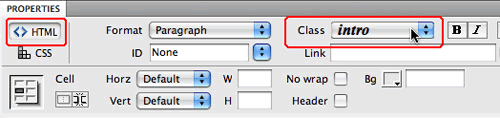
After you create a class selector, you will need to apply it. Select the type you want to format, then choose the class from the Class menu in the Property inspector. (Dreamweaver CS3 users, you'll find the class selectors in the "Style" menu).
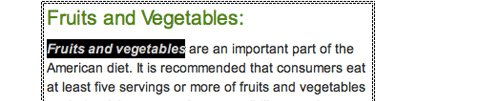
Here, a class style was created to set the first few words of the paragraph in bold italics.

If you switch to Code view, you'll notice that your newly stylized element is enclosed by a class attribute. This is the extra markup that drives the CSS purists crazy. However, in moderation, a few class attributes is nothing to worry about.

A class attribute is added to the code each time you apply a class style.

If you accidentally apply a class selector and decide to remove it, select "None" from the Class menu in the Property inspector.

You can also apply a class selector using the CSS Styles panel. Select the text you want to format, then Control-click (right-click on a PC) the class selector. Choose "Apply" from the context menu.
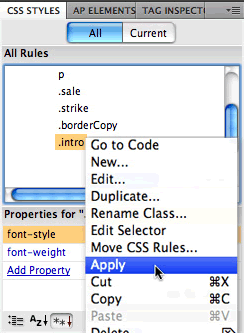
Using the CSS Styles Panel is an
alternate method of applying class styles.

ID Selectors

ID selectors are used to format specific content areas—for example, a left nav, sidebar, header, or footer. You could use a class selector for this same purpose, but giving each content area a unique ID will better define the structure of the document.

To create an ID Selector, use the New CSS Rule dialog. Choose the ID selector type. Then type the name of your selector, beginning with a # hash or pound sign.
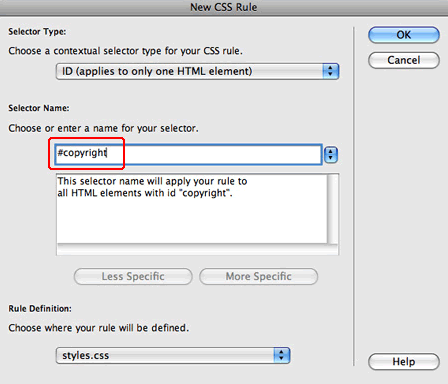
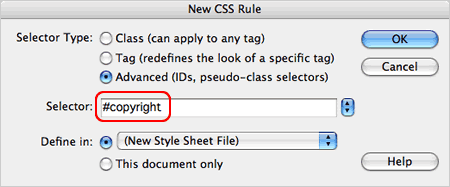
Dreamweaver CS3 users, select the Advanced (IDs, pseudo-class selectors) radio button to create an ID selector.
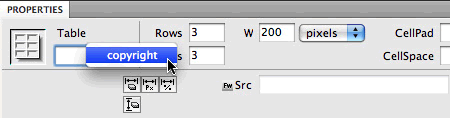
To apply an ID selector to a table or div, select the ID from the left menu in the Property inspector.
To apply an ID to an image, a paragraph, or table cell, first select the element, then Control-click (right-click on a PC) the ID in the CSS Styles panel. Choose Apply from the pop-up menu.
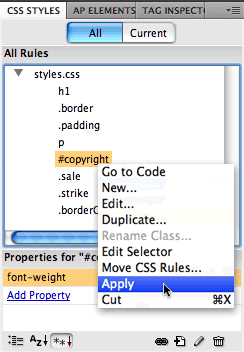
ID selectors give you the same kind of control as class selectors—an ID selector can be applied to any element. However, IDs can only be applied once per page.


When should you use an ID selector and when should you use a class selector?

Scenario A: You are designing a medical portal with articles on the latest research in the field of neurology. Each article is dated.

  • There is only one date per page. This means that you could give the date an ID. The date is an important element you really want to emphasize—maybe you'll give the date a unique background color and border to make it stand out.
  • Applying a class selector to the date is also an option. However, you will be creating a lot of class styles for different elements all over the site, so it doesn't give the date quite as much importance in the structure of your code—it is just another class.

Scenario B: The medical portal contains 5-10 short news flashes per page. Each news flash is dated.

  • In this case, an ID selector is not a possibility. IDs cannot be applied more than once in a single page.

  • Using a class selector is the solution here—classes can be applied as many times as needed within a document.


Descendant Selectors

The three main selectors (tag, class, and ID) can be combined to suit your needs.

Here's a scenario: You are designing a movie review site with a two column layout. The sidebar will contain short highlights on the the latest releases. You want to set these paragraphs in a bold sans serif font to make them stand out.

The main content area will contain longer movie reviews. The paragraphs in the content area will be set in a normal font weight with extra line spacing to improve readability.

The solution is to give each column a different ID: #sidebar and #content. Then use descendant selectors to target the paragraphs within each area.

#sidebar p This descendant selector applies only to the paragraph text inside the sidebar.
#content p This descendant selector applies only to the paragraph text in the main content area.

Descendant selectors can be also be created by combining several tag selectors or tag and class selectors. For example:

ul li This descendant selector applies to the list items (li) inside an unordered list (ul).
ul li .first Here, the first list item is given a class of ".first" to differentiate it from the other list items.

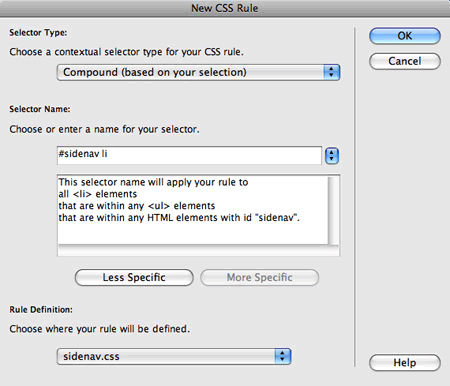
If you select a page element before you create a new CSS rule, Dreamweaver will take a stab at writing a descendant selector for you. In Dreamweaver CS4, choose Compound (based on your selection). In CS3, choose the Advanced radio button.
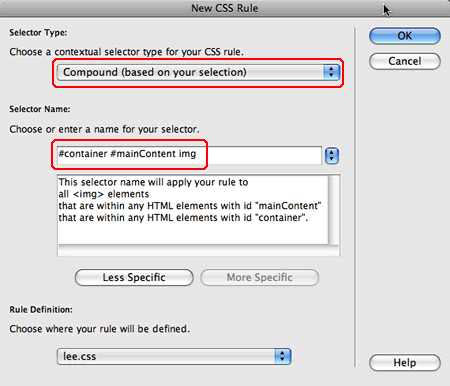
You can make the selector more or less specific. For example,

#container #mainContent img
This descendant selector would only format images inside the #mainContent div (which is nested inside the #container div).
#container img
This descendant selector is less specific. It will format any image inside the container div, where or not it is inside the #maincontent div.
#container #mainContent img.new
This descendant selector is more specific. It will only format images inside the #mainContent div with a class selector type of ".new".

Pseudo-Class Selectors

Now on to the fun topic of link states. You may be familiar with these already, but let's review:

1   1
 

link: This is the typical state of a link when nothing is happening to it and it has never been visited—it's just sitting quietly on your page waiting for some action.

visited: This state appears when the viewer has visited the link previously, but is not currently doing anything with the link like clicking on it or mousing over it.

active: This is a brief state, only appearing for the duration of time that the user's mouse is actively clicking on the link.

hover: A designer favorite! This state appears when the user's mouse is hovering over the link—looking much like a JavaScript image rollover and giving the link a very interactive effect.

 
1   1

It is a good practice to define all four link states for a consistent look. If you don't want certain states to have an effect (for example, no change when hovering), just apply the same style definition to the hover as you would to the regular link.

To ensure that the link states work properly, you must define your link selectors in the following order:


  1. a:link
  2. a:visited
  3. a:hover
  4. a:active


A good mnemonic for remembering this order is LoVe HAte: L-link V-visited H-hover A-active.

Using this order will ensure that your visited link styles override your link styles, and that your hover styles will override both the visited and link styles.

When two rules target the same element (in this case, both a:link and a:visited format links) the last rule to be defined overrides the other.

Create your pseudo class selectors using the New CSS Rule dialog. Select the Compound selector type. "a:link" is a compound selector—a combination of the <a> link tag and the ":link" pseudo selector.
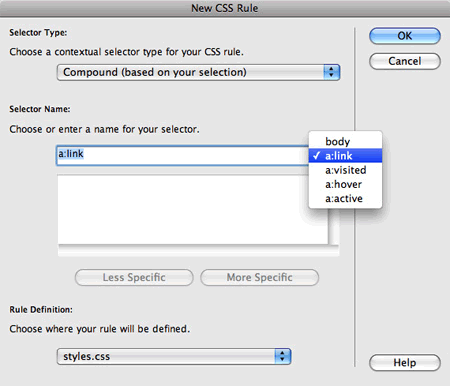
In Dreamweaver CS4, use the Compound selector to create link states. If you select the body tag before creating a new style, the link styles will display in the menu on right.

Dreamweaver CS3 users, select the Advanced radio button in the New CSS Rule dialog to create a pseudo class selector.

If you click the menu to the right of the Selector field, you'll see options for four link states: link, visited, active, and hover.
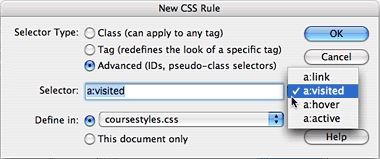
In Dreamweaver CS3, select the Advanced radio button and choose the pseudo-class selector from the menu on the right.

Hierarchy of Styles

All this talk of styles brings us to the important topic of hierarchy—CSS hierarchy, that is. What happens if you create an internal style that acts on the same HTML tag as your attached external sheet? What if you apply two class styles to the same text? That's where the intriguing term "cascading" comes into play (I know you were wondering).
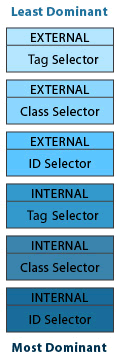
The best way to remember the hierarchy of CSS is that the closest style wins. External styles are the "farthest" from the item you're modifying—all the way over in some other document. Internal styles are much closer—just at the top of your HTML code. Therefore, an internal style will override an external style.

In addition, a class selector that you apply manually will override a tag selector, because the code used to apply a class style is wrapped around the item you're styling.

ID selectors carry more authority than classes. If a class selector and an ID selector are in conflict, the ID selector will win out.

CSS will try to accommodate styles that don't conflict with one another, combining them when possible rather than knocking out the less dominant.

Such issues are paramount when troubleshooting. If you apply a style and don't see a change in your document, a hierarchy conflict is usually the reason. Check that other styles, particularly internal, aren't conflicting with the problematic style.

Dreamweaver CS4 users can use the Code Navigator to identify style conflicts. When you hover over an element, the Code Navigator icon will pop up. Click the icon to view a list of all the CSS styles that affect the current selected element. You can view the properties for each style and jump directly to the CSS code to make any modifications.
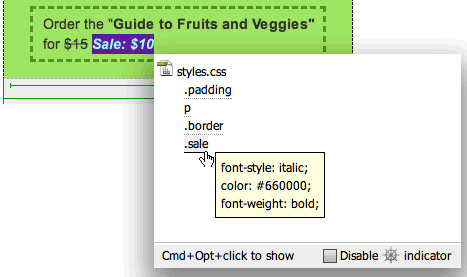
The selected text is affected by several CSS styles. Using the Code Navigator, it is easy to identify conflicting properties.

The Code Navigator is a terrific troubleshooting tool, but the hovering icon can become annoying. Check "Disable" to get rid of it. There are several alternative methods of accessing the Code Navigator when you need it:


  • Select the page element you need to troubleshoot, then go to View > Code Navigator in the top menu.

  • Command-option-click (Mac) or Alt-click (PC) any page element.

  • Control-click (right-click on a PC) a tag in the Tag selector in the lower-left corner of the Document window. Choose Code Navigator from the context menu.

  • In Code view, click the Code Navigator icon in the left panel.


Style Settings: Overview

Now that you know how to create internal and external styles using each of the major selectors, we can focus on style settings—the attributes that make your styles so stylish!

Defining Style Attributes

When we click OK in our trusty New CSS Rule dialog, Dreamweaver supplies us with the following settings:
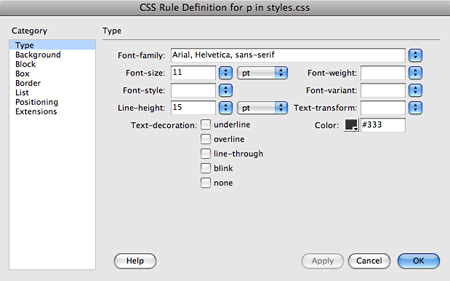
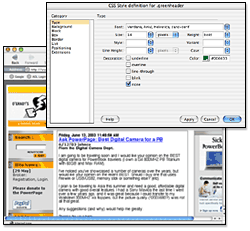
The CSS Rule Definition dialog is used to create and edit style attributes.

The various attributes are organized into categories on the left. Your style may contain attributes from all of the categories, just a couple, or in many cases, just the Type category.

Clicking Apply will register your style so you can see it on your page (if applicable) while leaving the Rule Definition dialog open for further adjustments. Click OK to save the settings and return to the Document window.

If you've created a tag selector, you may see your style in action immediately, providing that the proper tag has been used somewhere on your page.

If you've created a class selector, it will be ready and waiting in the CSS Styles panel. You will need to apply it before it will take effect.

Style Settings: Type Attributes
Type Styles

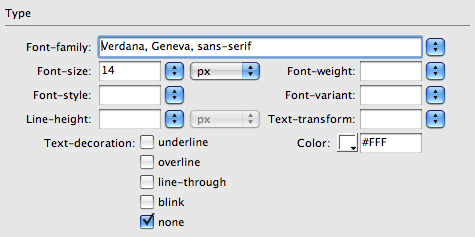
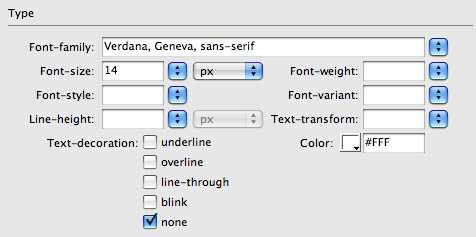
Let's take a closer look at the Type category of the CSS Rule Definition dialog. This is where we'll handle the most common formatting tasks such as defining font color and size.
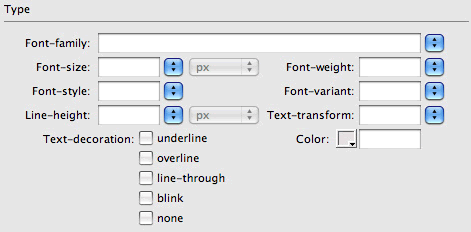
The Type category allows you to change the size, weight, color, and many other attributes of your text.

Most of the options here are self-explanatory, while others (sigh!) are a little more complicated. Let's look at each one.


Font-family offers the standard font group choices. It is important to stick to the standard Web fonts to ensure that all of your users will see your text properly. Unusual fonts may default to Times New Roman or another standard font that you did not intend.

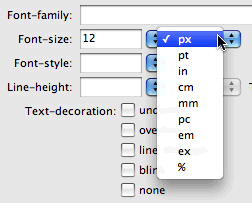
Font-size can be set in a number of different units (points, pixels, ems, and so on) which we will talk about in the next section.

Font-weight refers to the boldness of a font. Did you know that you have more options than just plain normal and bold? Click the menu next to the Weight field to see all the variations, or enter a numerical weight (ranging from 100 to 900—normal is somewhere in the middle while the standard bold weight is around 700).

Font-style includes Normal and Italic and a surprise newcomer: Oblique. Italic will slant or italicize any font (whether or not there is an Italic version in the font family) while Oblique is handled differently from browser to browser. In some browsers, it will act as Italic, slanting the text if an official Oblique version is not found, while in other browsers it will revert to Normal. So, Italic is your best bet for slanted text.

Font-variant includes an option for Small Caps (where lowercase letters are small capitals). Some browsers support this variant, but older browser will ignore it and display the text normally.

Line-height specifies the height of each line of text, also known as line spacing. If you'd like to add more breathing room to your text area, you can specify a line height slightly larger than the text size.

Text-transform switches the letters you've typed to all uppercase, all lowercase, or capitalized (the first letter of each word capitalized, also known as "Headline Case"). This can be useful when creating a style for headers or navigation links.

Text-decoration allows you to add underlining, overlining, line-through (also known as strikethrough), or a blinking effect. You may choose more than one of these options. For the sake of all that is right and good, please avoid blinking. Also note that blinking and overlining (where a line is placed over the text rather than under) are not supported by all browsers.

Color sets the text color. Click the color chip, or enter a specific hexadecimal code code.


You do not need to apply all of these type settings—the fields you leave blank will simply default to normal (such as no decoration, normal case, standard line height, and so on).
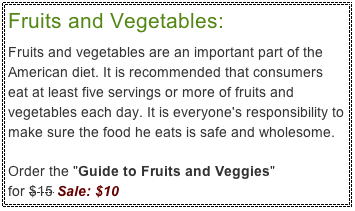
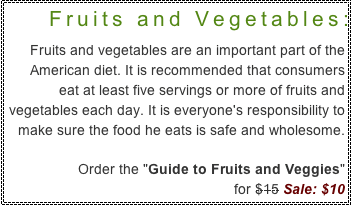
In the above CSS example, the header style includes font, size, weight, and color. The main paragraph style includes font, color, and line spacing. A strikethrough was added to the original price, and red, italicized text denoted the sale price.


Use pixels for absolute text sizes. Pixels are exactly the same size on Windows and Macs. Points vary slightly.


Using relative type sizing promotes better usability.


Want to create a style that's similar to one you already have? Control-click (right-click PC) the style in the CSS Styles panel, duplicate, rename and edit.


Be sure to save the .css file as well as your .html file to save any new styles you may have created.


Fixed Type Sizing

Print designers are used to working with fixed type units like points, picas, and centimeters. You specify exactly what size you want your type, and it will stay that way.

On the Web, the pixel is the most commonly used fixed size unit. For a rigid design like a designer's portfolio, fixed units give you the most control over the type design.

However, be aware that even if you specify a fixed size in pixels, Firefox and Safari users will be able to scale up their font sizes by going to View > Make Text Bigger (or similar) in the browser menu. This may cause unexpected results like overflowing columns or strange line breaks. It is a good idea to test your designs by scaling the text size up or down a notch in the browser.

Relative Type Sizing

Designers love the sophisticated look of small type. However, most users prefer larger type that is a comfortable size to read. This is especially important for users with vision impairment. Working with relative type units will allow your user to resize the text as necessary.

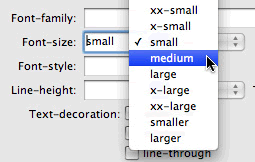
The first option is to choose a relative font size by clicking the arrow next to the Size field.

The options here make the type smaller or larger relative to the user's default font size. This is an inexact method—the results will vary depending on the browser.

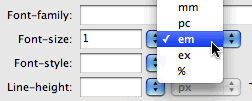
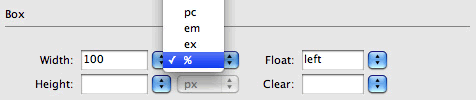
The second method is located in the units drop-down menu to the right. Three units in this list are considered relative: ems, exs, and %.

The % option is just what you'd expect it to be—100% appears at the user's defined default font size, and percentages above or below that will appear larger or smaller accordingly.

An em is the width of the letter "m"—the widest letter in most fonts. 1 em would be equal to 100%. Variations are in decimal format (for example, 0.9 em would be smaller and 1.25 would be larger).

An ex (you guessed it) is the width of the letter "x". However, exes are not often used—most designers go with ems instead.

Working with relative text units can be confusing at first. CSS guru Owen Briggs developed and tested a system with good cross-browser results. It's simple:


Step 1: Create a tag selector for the body tag. Set the font-size to 80%. This will size down all the type on the page, from headers to paragraphs.

Step 2: Create a tag selector for the p tag. Set the font size equal to 1 em.

Step 3: Create a tag selector for the h1 tag. Set the font size equal to 2 em.

You can take it from there—a small caption might be .9 em, a mid-sized h2 header 1.5 em, and so on.


To read more about Owen Briggs' system, click here.

Type Blocks

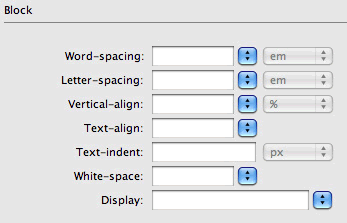
Breaking away from font size, let's talk about typesetting. The Block category of the CSS Rule Definition dialog offers several methods of controlling the spacing and presentation of text areas.

The settings in the Block category affect the spacing and alignment of a text area.

Most of the block attributes work just like their names suggest.

Word-spacing and Letter-spacing adjust the space between words and letters for better legibility (or worse, if you're feeling anarchistic). Be sure to test carefully, as older browsers do not support these features.

Vertical align will align content at the top, middle, or bottom of a div or table cell. The vertical-align menu also includes options for subscript and super script—most often used to place digits above or below the baseline, as in mathematical or scientific uses.

Text-align can set a paragraph to left-align, center, or right-align.

Text-indent creates an indent before the first few words of a paragraph.

The Whitespace property can be set to "pre" to allow multiple space marks. (Normally, if you type two consecutive space marks in a sentence Dreamweaver will assume you've made a typo and compress the spaces into one.)

You can also set text to nowrap to prevent line wrapping without a <br> tag. This property is not often used, but you never know!

Display determines how an element will display. If you choose display none, the element won't display at all. This comes in handy for "hide and show" behaviors.

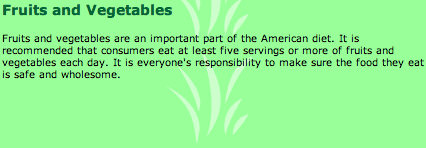
Revisiting our healthy example, you'll see that the header style has been given 5 pixels of letter spacing. The paragraph text has been set to align right.

Editing Styles

Like any design element, the styles you create may need to go through some changes down the line. Perhaps the boss says, "Can you make all the links orange instead of red?" or you changed your mind about a font choice.

Head on over to the CSS Styles panel and select the style you wish to edit.

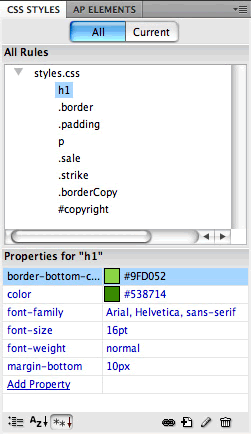
The CSS properties of the selected style are listed in the panel below. You can quickly edit a property or add a new one.

Toggle between the buttons in the lower left corner of the CSS Styles panel to see a complete list of all available properties or only the properties that have already been applied.

In Dreamweaver CS4, you can also edit styles using the Property inspector. Choose the CSS text properties button.

Choose the CSS button to edit the CSS properties of the selected text.

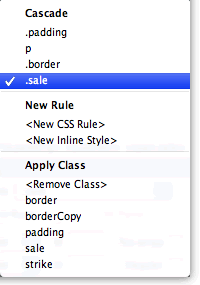
The first step is to choose the CSS rule you would like to edit. You'll find several options in the Targeted Rule menu:

The styles listed under Cascade already affect the text you have selected in the Document window. Select a style, then edit the font, size, or color using the fields to the right. Click the Edit Rule button to access the full set of properties in CSS Rule Definition dialog.

You can also create a New CSS Rule. Selecting this option will open
the New CSS Rule dialog. Define the new rule in your external style
sheet.

Creating a New Inline Style will embed the style info internally in
the HTML document. This method is not recommended. It is better form
to save your styles to an external style sheet.

Finally, you can choose Apply Class to apply an existing class style
to the selected text.

Dreamweaver CS3 users should take care when using the Property inspector to format text. Selecting a text paragraph and changing the font using the Property inspector will result in an internal style. Instead, you should use the CSS Styles panel to format text. This will give you the option of saving the style to your external style sheet.

Of course, there are some settings in the Dreamweaver CS3 Property inspector that are quite useful and completely valid:


  • The Format menu is used to apply heading tags, like <h1>.

  • The Style menu is used to apply a class style to a selected text area.

  • The B and I buttons apply <strong> and <em> tags.

  • You'll often use the unordered list and ordered list icons to create lists.

  • The blockquote icons can be used to indent a citation or quotation.

  • And finally, the Link and Target fields are necessary to create text links.


In the Dreamweaver CS3 Property inspector, some of the settings are valid (highlighted above). The settings to avoid are grayed out. Don't use the Property Inspector to choose font families, sizes, or colors. Use the CSS Styles panel instead.

As you design in Dreamweaver, it is important to be aware of how the code is being written. Your text formatting might look terrific—but did you use internal or an external styles? Below is a a video tutorial to help you visualize how it works in CS3. (Dreamweaver CS4 users, note that the functionality of the Property inspector is different in your version.)

Running Time: 3:50. Read the Transcript


Case Study: United Tree Huggers
The Concept

Want to see a Web page layout that embodies quite a few of these concepts? Here's a project created by Betsy Bruce and Micah Sonderman to showcase the ease of using CSS in Dreamweaver. It involves the project scenario from hell:


You've been found guilty of littering in a National forest (it was only an apple core!). Instead of fining you, the judge ruled that your punishment will be designing a Web site for her favorite environmental group, United Tree Huggers (UTH).


What to do? Let's use CSS to style the site with speed.

The Production

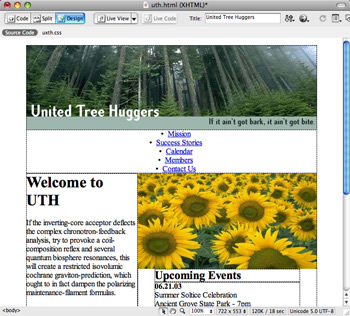
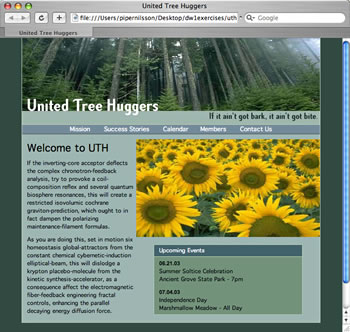
The text and images are inserted in tables, but it's not yet formatted. CSS will do the job.

CSS was used on this site for a number of reasons. The first is speed. This site has the potential to be large. All the pages can be formatted all at once using an external style sheet. Second, CSS formatting will allow design changes to be made almost automatically in case of a site redesign or just a picky client.

This page employs CSS for text formatting. Tag selectors were used to redefine the paragraphs and headers. The top nav was formatted using an ID selector.

In addition, some design formatting has been tackled with CSS—you'll explore how to do this yourself in a moment. The <body> tag was redefined with a green page background color, and a number of class styles were created to place some padding and borders on various elements.

Much prettier than the non-formatted version, don't you think? Thanks, CSS!

Download the UTH folder from the course downloads page. Please poke around in the code to see how it's constructed. Now on with the show...


Apply background images to the h1 tag selector to create interesting page headers.


Style Settings: Design Attributes

The remaining categories in the CSS Rule definition window deal with page design features rather than type formatting.

Backgrounds

Traditional HTML formatting has limited background capabilities—you either get a block of color or an image that tiles over and over. Good news! CSS offers more flexibility in background choices. You can apply a background image to an entire page, a table, or even just a paragraph of text.

Let's click the Background category of the CSS Rule Definition window to see how it's done...

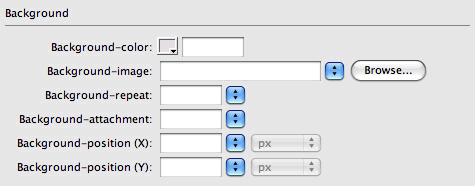
The first two features in this window work as expected—select a background-color chip or use the Browse button to choose a background-image.

The background-repeat setting determines if and how a background image will repeat. The repeat option tiles the image horizontally and vertically. Repeat-x tiles horizontally only, repeat-y tiles vertically only, and no repeat does not tile at all so your image will only appear once.

Background-attachment determines the position of the background image as the user scrolls the page. The scroll attachment option (which is the default) sets the background to scroll along with the page content, while fixed leaves the imagery in position as the page scrolls. The fixed option has limited browser supported, unfortunately.

Background-position (X) and Background-position (Y) allow you to better situate your background image (left, center, right, top, middle, or bottom).

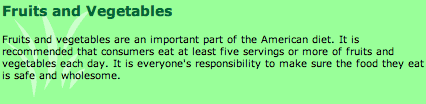
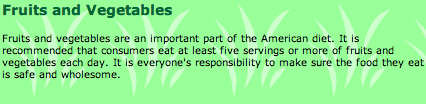
In each of the above examples, green was selected as the background color and a small image of grass was chosen as the background image. The first version shows the image with No Repeat selected. The second uses the Repeat-x setting. The third uses Repeat-y and a Center horizontal position. The possibilities are endless!
Borders

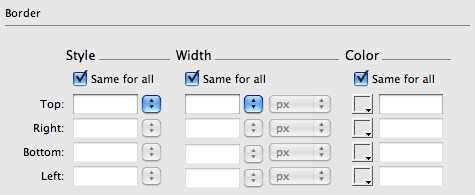
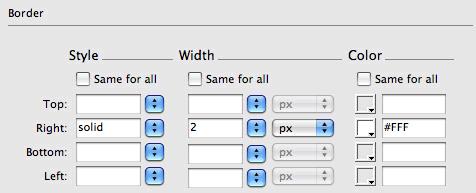
The border category gives you a selection of border styles, widths, and colors to choose from:

Check Same for all if you want the border to surround all four sides of your element.

This table has a 4 pixel green dotted border.

Uncheck Same for all to create a border across just one edge.

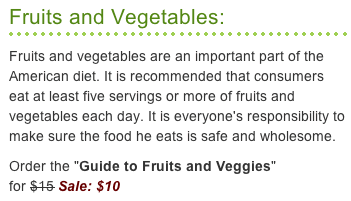
This h1 tag selector has a dotted border applied across the bottom only.

Boxes

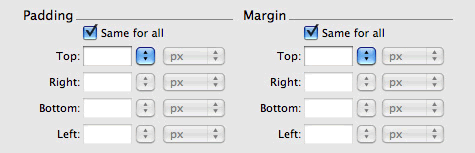
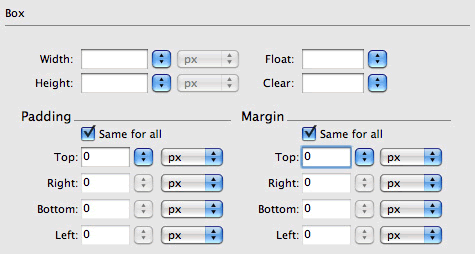
The Box category is used to control the spacing between and around elements in your page layouts. Whether you need to add a margin around an image, reduce the space below a page header, or pad a table cell—this is the place to go.

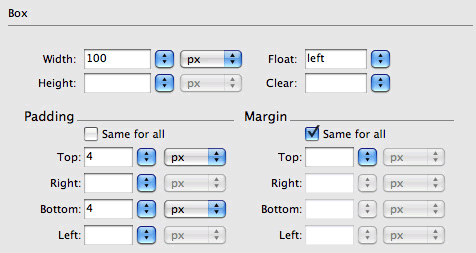
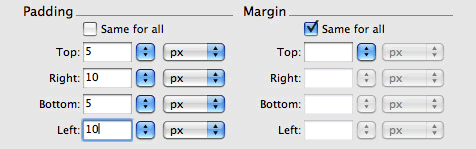
There are two options: padding and margin. Padding adds space inside an element.

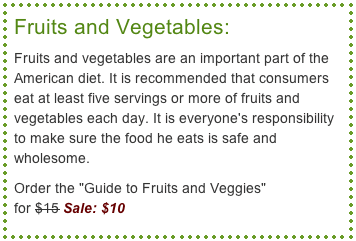
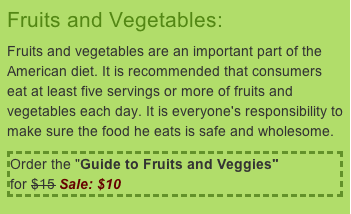
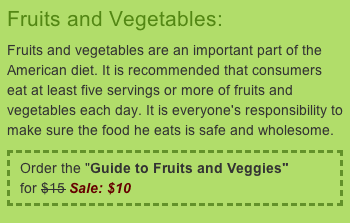
The "Order the Guide to Fruit and Veggies" paragraph has a dotted border. However, the text is too close to the edge—it needs padding.


Here, 5 pixels of padding has been added.

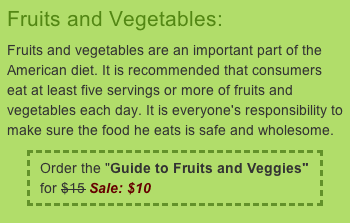
Margin adds space outside the element.

Here, 20 pixels of left and right margin has been added outside the dotted border.

Unlike with HTML cell padding and cell spacing, you can enter separate values for each side. Finally!

Lists

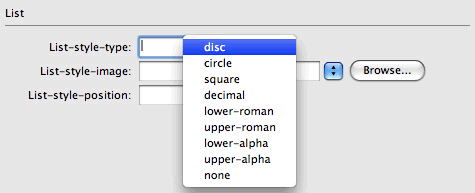
Exploring the List category reveals some additional bulleting options, allowing you to choose a new bullet shape (you're no longer married to the black disc!) or even supply a custom bullet image and refine the positioning.

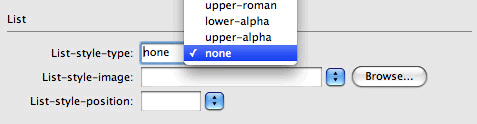
You'll find options for bullet shapes as well as numbering types in the List-style-type menu.


ID names are case sensitive. Double check the spelling and casing. Don't forget the # before the name of the ID.


The ID Selector #sidenav li could also be written as #sidenav ul li—"the list items inside the unordered list inside the #sidenav div."


Make links block elements to create a button-like effect with a larger clickable area.


Block elements must have a defined width to display properly in IE.


First, the list items (#topnav li) are set to display inline. This forces the list items into one line.

Then, the link anchors (#topnav a) are set to float "left". This turns the links into block elements (making it possible to define a width).


List-Based Navigation

The larger your Web site grows, the more links you'll need. Using graphic buttons can become very time consuming. After creating the buttons in Fireworks, slicing, exporting, inserting in a table... you will have to repeat the process all over again if the clients decides to add another link or change the color scheme. Graphic buttons make your pages more image-heavy and slow to load. If you are using rollovers, every button will require two images to create the off/on effect.

An alternative is to use CSS to style your links. It is good for you (easy to build and easy to edit) and good for your user (quick to load and more accessible to screen readers).

Create a new HTML file called sidenav.html and save it into your local root folder. You'll be using this list in your next project, so be sure to follow along.

Prep Work: Creating a List of Links

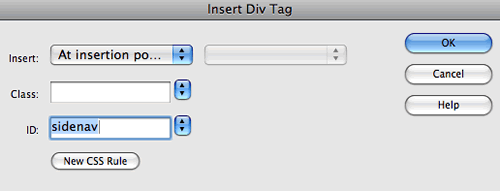
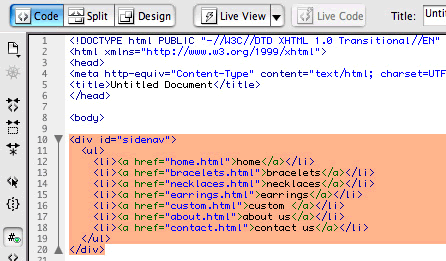
The first step is to insert a div. Go to Insert > Layout Objects > Div Tag. Type "sidenav" into the ID field and click OK.

The div tag is a containing element. It will define the overall dimensions of the navigation bar. The div is also used to give the nav bar a unique ID.

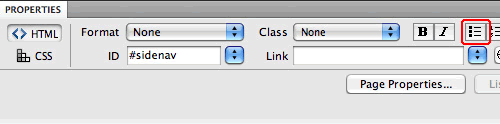
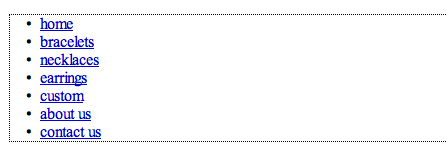
Back in the document window, you'll see a narrow div with some filler text "content for id "sidenav" goes here". Keeping the text selected, click the Unordered List icon in the Property inspector. A bullet will appear to the left of the text, indicating that it is now formatted as a list.

Select the text and click the the Unordered List icon in the Property to insert a list.

Replace the filler text (Content for id "sidenav" Goes Here) with the following links. Give each link a URL (reference the table below). Hit your return key after each link.

home home.html
bracelets bracelets.html
necklaces necklaces.html
earrings earrings.html
custom custom.html
about us about.html
contact us contactus.html

Take a look at the code view to study the basic structure of the list.

Each link is inserted in a separate list item.

The list is comprised of four elements:


1. #sidenav
The container div that holds the list has an ID of #sidenav.

2. #sidenav ul
The unordered list inside the #sidenav div.

3. #sidenav li
The list items inside the #sidenav div.

4. #sidenav a
The link anchors inside the #sidenav div.


Each of these elements will be redefined to give the list a complete makeover.

Step 1: Style the Container Div

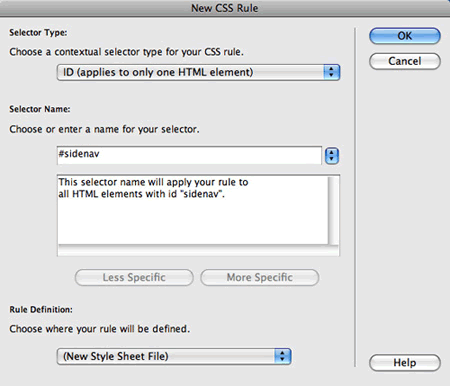
Using the CSS Styles panel, create a new CSS rule. Choose the ID selector type, and enter #sidenav as the selector name.

Define this rule in a New Style Sheet File—save as sidenav.css in your local root folder.

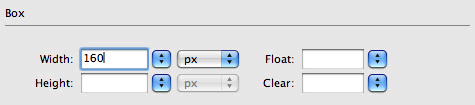
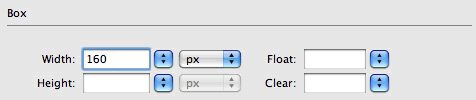
In the Box category, give the div a width of "160px" and click OK.

Back in the document window, you'll see that the div fits around the list better. However, there's still lots of work to do...

Step 2: Style the Unordered List

The next task is to remove the wide margin surrounding the list.

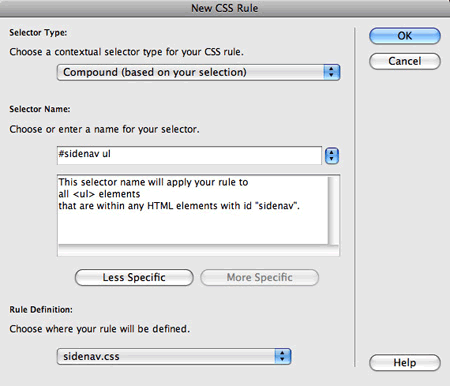
Create a new CSS rule. Choose the Compound selector type (Dreamweaver CS3 users, select the Advanced radio button) and enter #sidenav ul as the selector name.

In the Box category, set the margins and padding to "0". Click OK.

Step 3: Style the List Items

Next, get rid of the list bullets (they've been bumped over to the left but they are still there). Create a new CSS rule, choosing the Compound selector type. Enter #sidenav li as the selector name.

In the List category, select "none" from the list-style-type menu. Then click OK.

Step 4: Style the Links

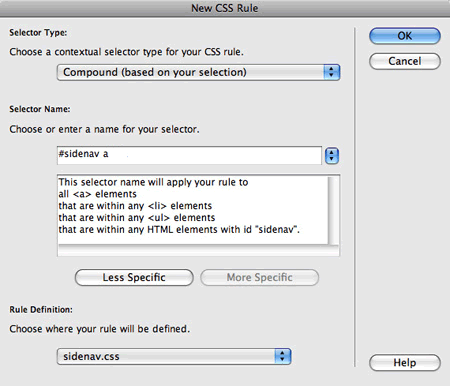
Create a new CSS rule. Use the Compound selector type and name the selector #sidenav a.

In the Type category, choose a font-family, font-size, and color for the links. Also, set the text-decoration to "none" to remove the link underlines.

In the Background category, set the background color to blue, #0099CC.

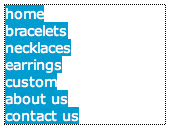
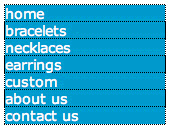
Click Apply to see how it looks so far. Not great—the blue background color is only filling in the space behind the text. To fix this, convert the links to block elements. Block elements have rectangular dimensions, like a table or an image.

Before the links are converted to block elements, the link area is under the text only.

After the links are converting to block elements, the link area is extended.

Choose the Block category and change the Display setting to "block".

Formatting the links as block elements will allow you to define a width for each link. In the Box category, set the width to "160px".

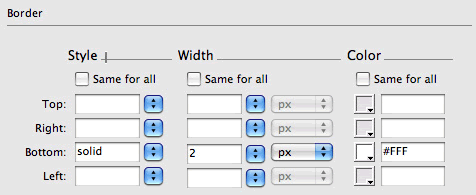
Just a couple more details—add a border under each link (Border category).

Add some padding around the links (Box category). Click OK—you're done.

Bonus Step: Style the Link Hovers

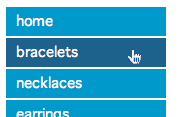
It is possible to create the a cool rollover effect using CSS. The trick is to change the background color of the a:hover link state.

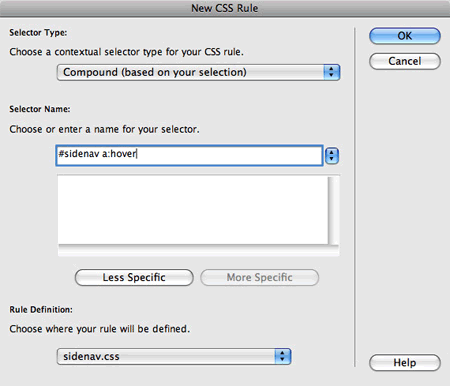
Create a new CSS rule, choosing the Compound selector type. Enter #sidenav a:hover as the selector name.

In the Type category, set the text color to white, #FFFFFF. In the Background category, set the background color to a dark shade of blue, #1C6288.

Save your files and preview in a browser to see how it works. Dreamweaver CS4 users, you can preview the link hover by clicking the Live View button.

Horizontal Lists

Lists don't have to be vertical, of course! Lists can also be used to build horizontal navigation bars. A common building block in any site, horizontal lists are an important skill to have in your Web designer's toolkit.

Prep Work: Start with a List of Links

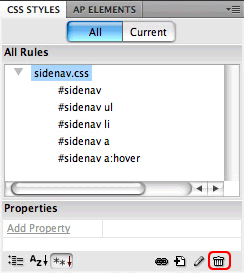
Rather than retyping the links, reuse the list you created for the side nav. Go to File > Save As and name the file topnav.html. Select the sidenav.css file in the CSS Styles panel, then click the trash can icon to detach the style sheet.

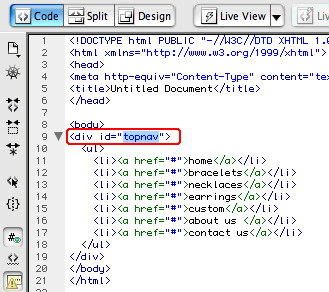
Back to a clean slate (just a plain, unformatted list). There's one more very important step—switch to the Code view and change the ID of the div to topnav.

Step 1: Style the Container Div

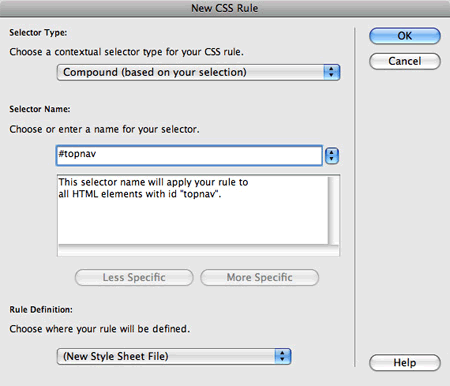
Create a new CSS rule. Choose the Compound selector type and enter #topnav as the selector name. Define the rule in a new style sheet, topnav.css.

In the Background category, set the background color to blue, #0099CC.

In the Box category, set the width of the div to 100%. This expands the div to fill the entire width of the page. Also, set the div to float left. This pushes the div over to the left.

Step 2: Style the Unordered List

Create a new CSS rule for #topnav ul. In the Box category, set the margins and padding to "0".

Step 3: Style the List Items

Create a new CSS rule for #topnav li. In the List category, set the list-style-type to "none" to remove the bullets. In the Block category, set the display to "inline".

Back in your document, you'll see a major change. Setting the display to inline forced the list items to display all on one line.

Already, you've got a horizontal list. Now just add formatting.

Step 4: Style the Links

Create a new CSS rule for #topnav a. In the Type category, select the font-family, font-size, and color. Set the text-decoration to "none".

Click Apply to see how it looks.

The links are crowded together. As inline elements, the links have no determined width.

We will use a trick to turn the links into block elements. In the Box category, choose float "left". Give the link area a width of "100px". Add some padding above and below the links.

Click Apply to see the changes—looking better.

In the Border category, add a solid white border to the right of the links.

Click Apply to see the progress. The spacing is off here ...

In the Block category, set the text align to center.

Click OK. The text is nicely centered on each button.
Bonus Step: Style the Link Hovers

One final touch—the link hovers. Create a new rule for #topnav a:hover.
In the Text category, set the text color to white, #FFFFFF. In the Background category, set the background color to a dark shade of blue, #1C6288.

Preview in a browser to test the rollover effect.

Now you're ready to put CSS to work in the exercise.


Learn how to create and edit tables in an HTML document.
Learn effective use of table borders, background colors, and patterns.
Discover how and when to use relative and absolute table sizing.
Learn tips for creating an illusion of flow in table-driven designs.
 

Exercise
Format a camp Web site using an external style sheet.

Discussion
What's your favorite CSS based Web site? Share your thoughts with other students at the Discussions Board.